Follow along with Erica in this teaching tutorial video, or scroll down to see the step-by-step screenshot instructions below. All of these instructions are generated using our demo company. If you don't use Time & Attendance, click this link to watch our other video for running a manual payroll.
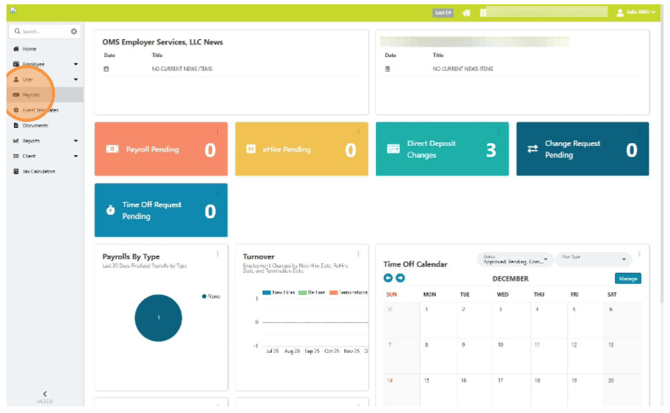
Sign in to myhrgeek.com and click Payrolls.
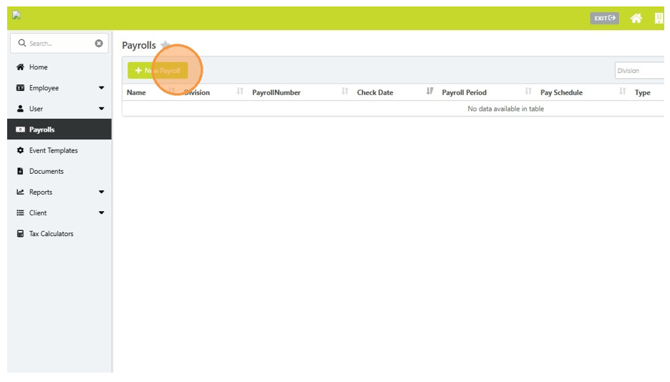
Then click the green +New Payroll button.
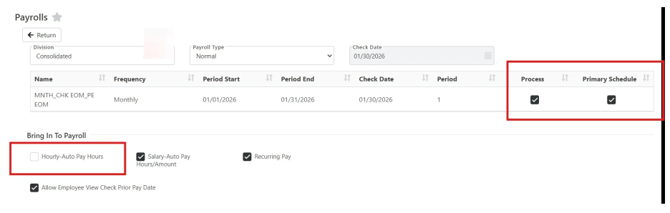
Mark the two boxes: Process and Primary Schedule
This defaults to NORMAL payroll in the payroll type drop-down and should include the correct pay period/check dates. If you need to change the displayed pay period or check date, choose INTERIM payroll under the payroll type drop-down.
Uncheck the section labeled hourly auto pay hours. This section automatically adds hours to hourly personnel.
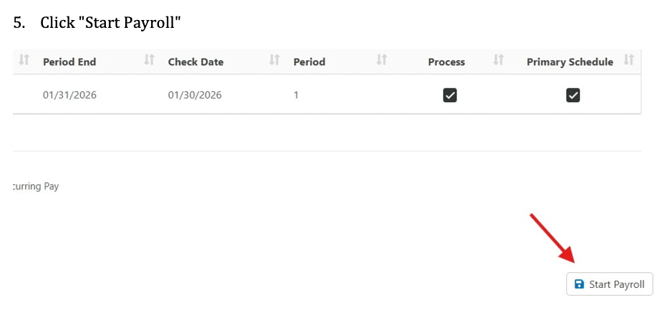
Click the Start Payroll button in the bottom right.
When the timesheet opens, click the OPTIONS button and choose Upload Time to bring in the time punch data from the HRGEEK time clock.
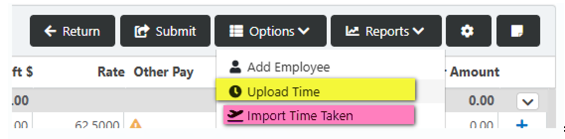
If you are also using the PTO module, the next step will be to select import time taken to bring in approved PTO requests.
Then use the white line under each employees name to add additional pay to the corresponding pay code column. The last two rows on the timesheet marked as OTHER HOURS/OTHER AMOUNT allow you to choose another pay type not currently displayed on the timesheet.
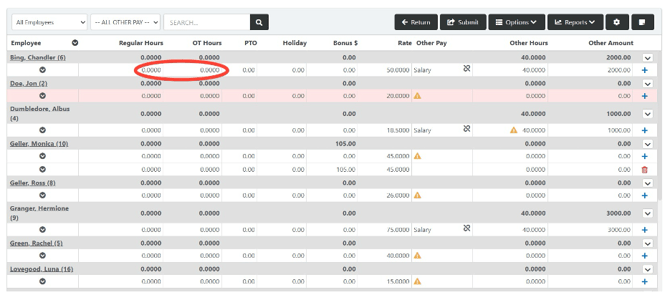
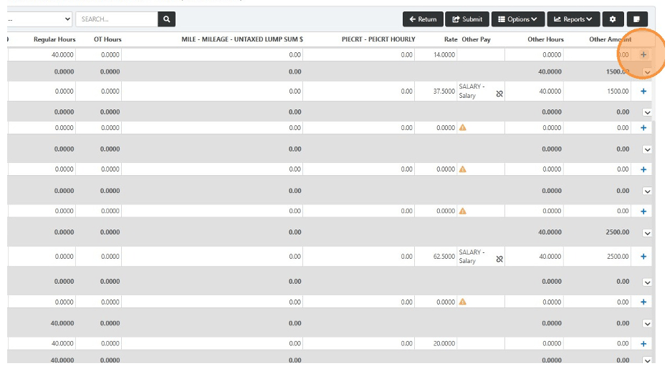
Continue to add pay to each employee on the timesheet. If you need to add another row to an employee, click the plus icon at the end of the row. This will create a second line on the timesheet. Those hours can be coded to another department/position/work comp code by using the black carrot under the employee name.
The tab or arrow keys will move you through the cells on the timesheet.
Once you have entered all your pay information, you may review using the REPORTS button. When you have done the review/verification, click SUBMIT. This process automatically does the tax calculations on the payroll.
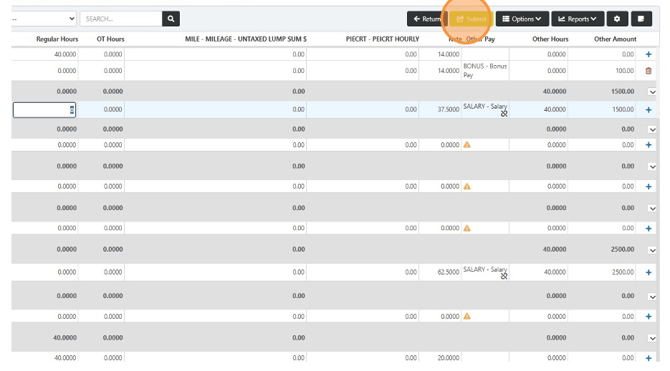
After submission, use the REPORTS drop-down menu to check the payroll register, check stub overview, deduction recap, and the invoice. If you have changes, you can go back into the timesheet, make changes, and resubmit. This will immediately update the reports in the drop-down for your review.
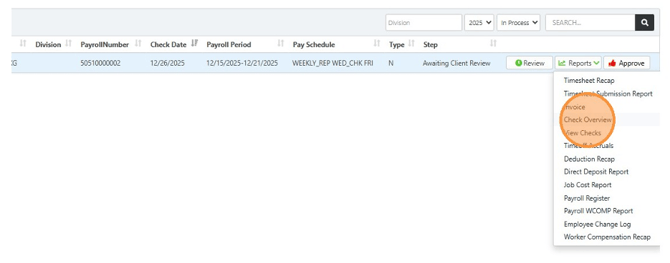
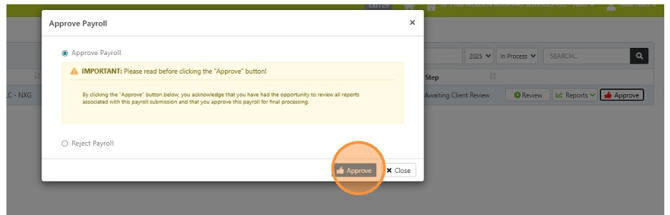
When you are satisfied with the report data, click APPROVE.

You will need to acknowledge this message and click APPROVE again. This will notify your payroll specialist that your payroll is complete. The payroll specialist will generate your checks/DD vouchers and post the payroll. Then you will receive an email notifying you payroll was finalized.