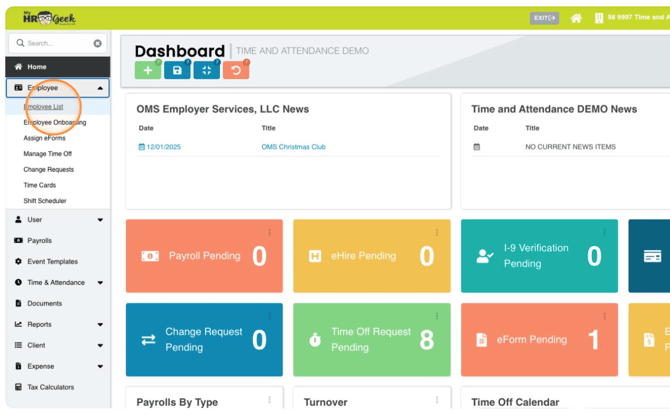
From your administrative dashboard, click EMPLOYEE in the main menu, then from the dropdown select EMPLOYEE LIST.
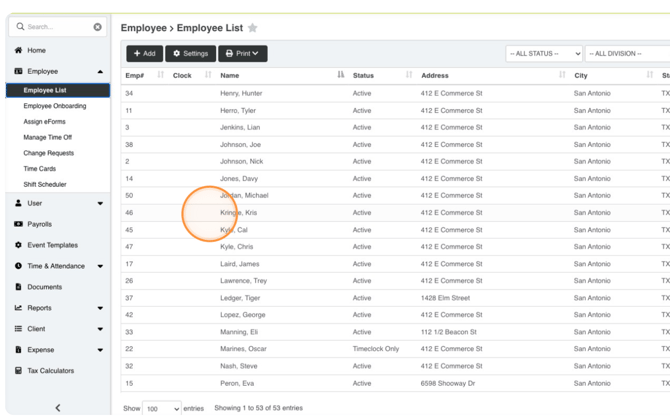
From the list, locate the employee you need to make adjustments to their W-4. Double-click on their name.
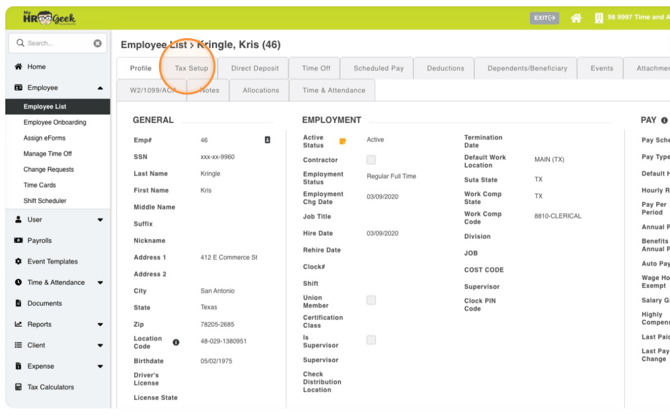
Then select the TAX SETUP tab at the top of the employee profile.
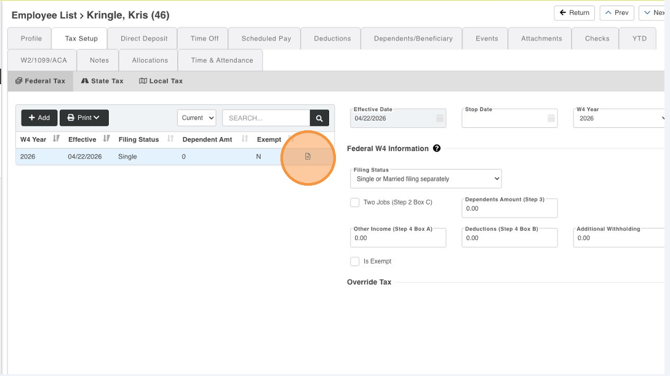
There are three tabs in the Tax Setup section: Federal, State, and Local. When you are on the Federal tab, the current W-4 is listed. When you click on the W-4 bar it will turn blue and unlock, displaying the details in the fields to the right.
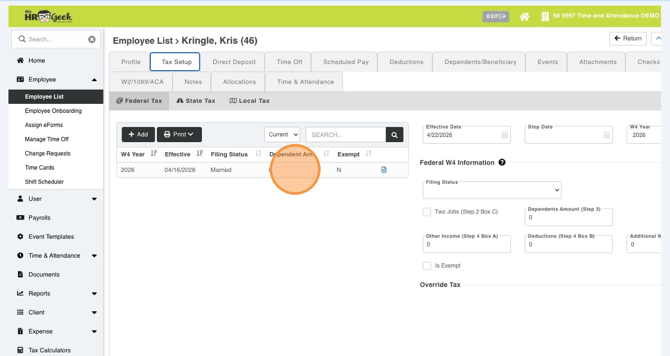
BEST PRACTICES: OMS recommends not editing a W-4, but instead adding a stop date and creating a new W-4. This will capture the change history.
Click on the STOP DATE field and enter a date from the dropdown calendar.
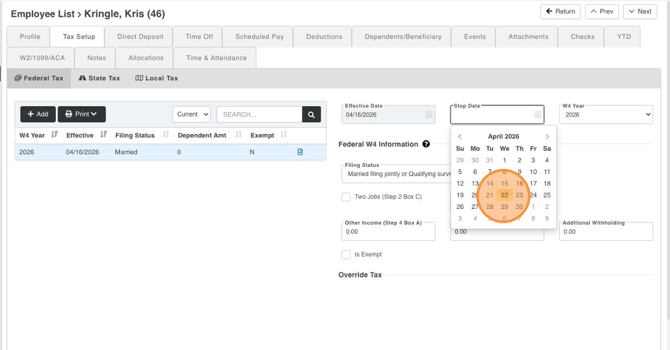
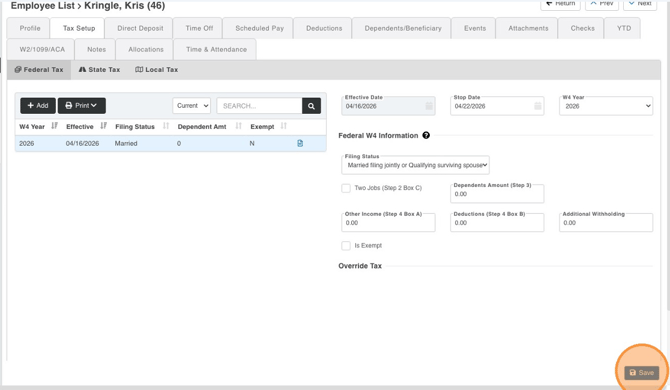
Then click SAVE.
Next, click the green +ADD button.
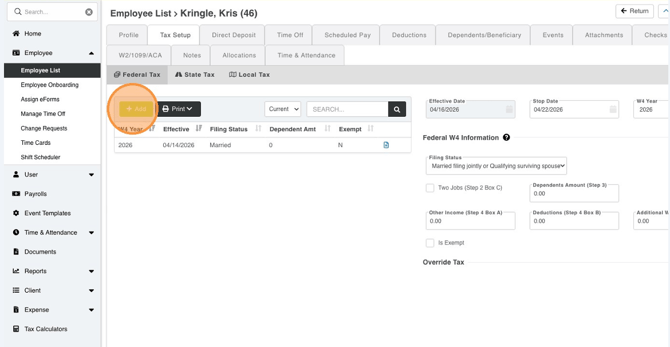
Enter the Filing Status and necessary data, leaving the Stop Date blank.
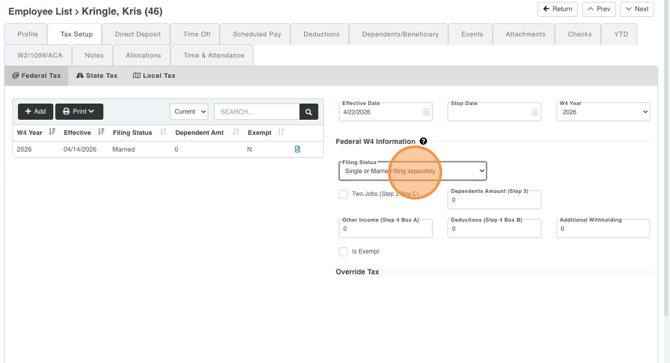
Then click SAVE. The previous W-4 has been archived, and the new W-4 is displayed.
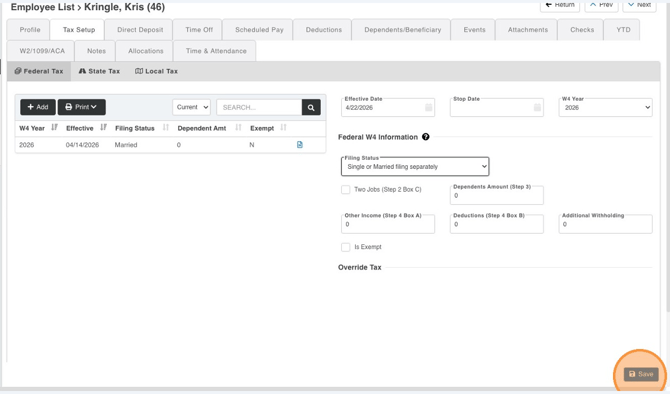
At any time, you can click the blue DOCUMENT ICON to view the traditional form W-4 layout.