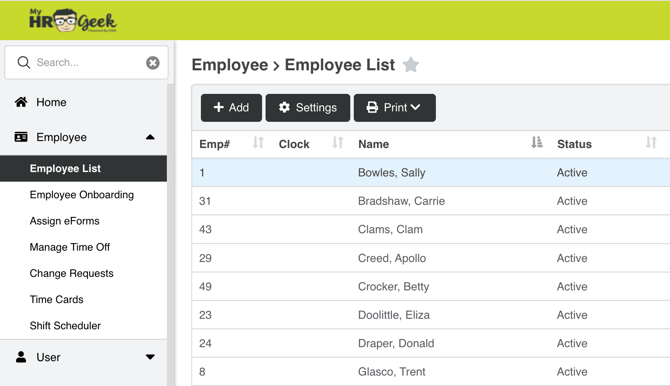
On your MyHRGeek admin dashboard navigate to the main menu on the left side of your screen. Click on Employee, then Employee List. 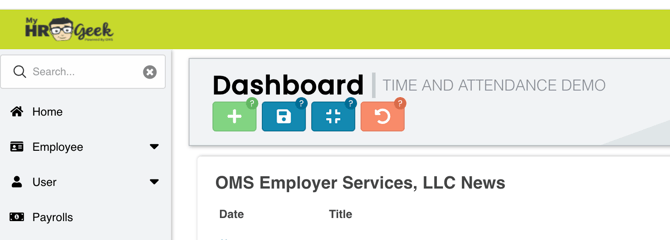 From the list, select the employee by double-clicking on their name.
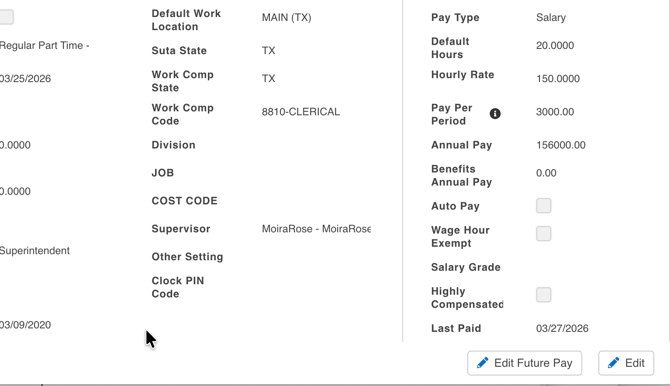
 Click the EDIT Button in the bottom right corner to unlock the fields so you can make changes.
 Under the Employment section, update the Active Status to Terminated.
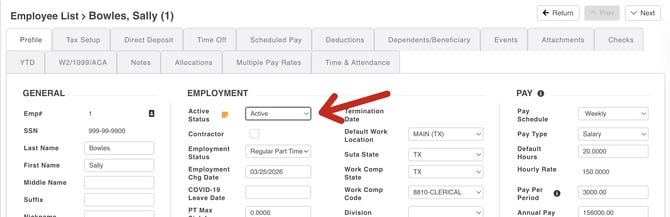
You will be required to enter information into the fields that populate in the employee card.
-
Termination Date
-
Status Changed Notes
-
Separation Code
-
Final Check Date
Then click SAVE in the bottom right corner of the page.
To finalize an employee’s termination, it must be processed through the payroll timesheet. If you are submitting your own payroll timesheet through MyHRGeek, please follow the instructions below to finalize the terminations so that the employees no longer populate in the timesheet going forward.
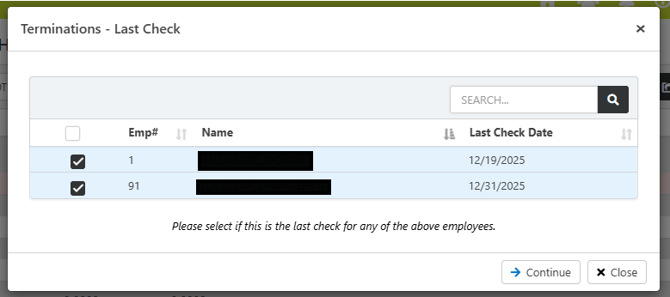
When you submit the payroll, a Terminations Last Check pop-up will ask you to select if this is the last check for any terminated employees.
If you plan on paying the employee again in the future (bonus/commission/separation/etc.), you can leave the employee unchecked and click CONTINUE. This will allow the employee to continue to populate on the timesheet and receive payment.
If it is the last check and they should NO LONGER populate in the timesheet, select the employee(s) and click CONTINUE.
This will complete the termination process, and the employee will no longer populate in the timesheet. This step will also inactivate any scheduled pay items, deductions, and direct deposit.