First, log in to your administrative account. Click on TIME & ATTENDANCE in the main menu, then choose Shift Setup from the dropdown. When a shift is highlighted in blue, the details will appear in the section to the right, and you can edit it or select a color from the Shift Color dropdown menu.
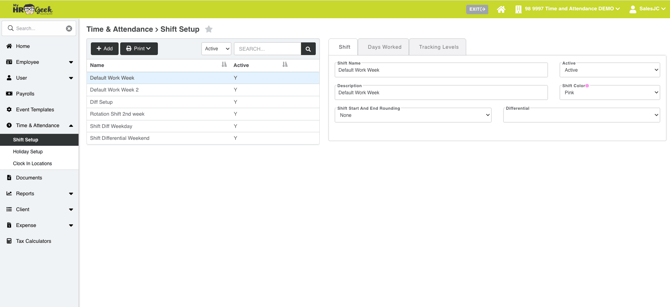
Click SAVE in the bottom right after making edits.

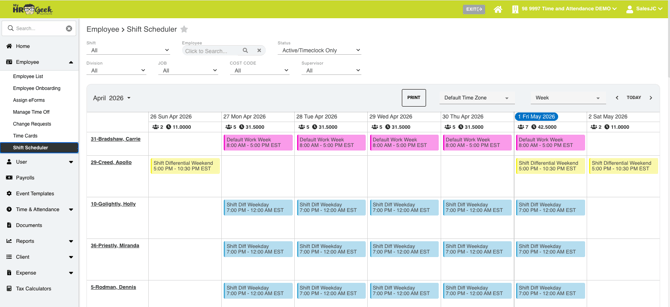
To use the shift scheduler, click on Employee from the main menu and choose Shift Scheduler from the dropdown. This is an example of a shift schedule utilizing different colors. Double-click on any open block to assign a shift. To sort your view by shift, selecting the Shift dropdown menu item in the left top of the page.
The system doesn't email the employee when shifts are assigned or changed. The employee will need to login to their portal to view the schedule from their view.
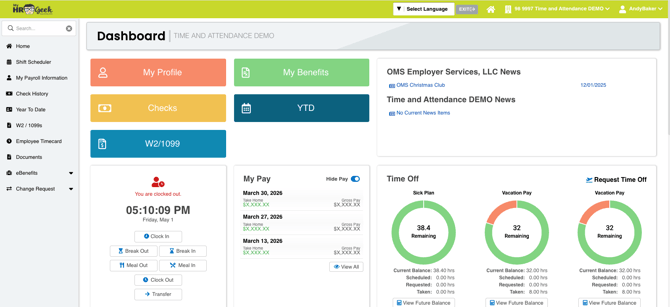
The employee dashboard looks like this.
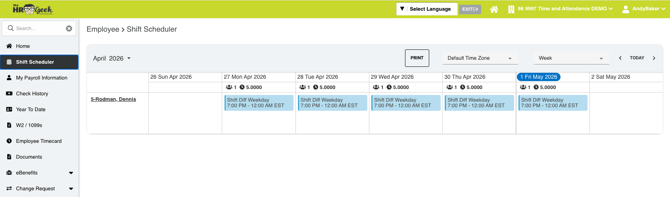
When the employee clicks on Shift Scheduler in the main menu, they will see their shift assignments.