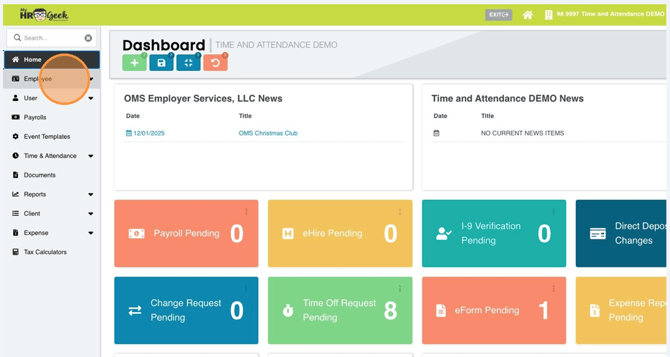
From your dashboard, choose EMPLOYEE from the main menu.
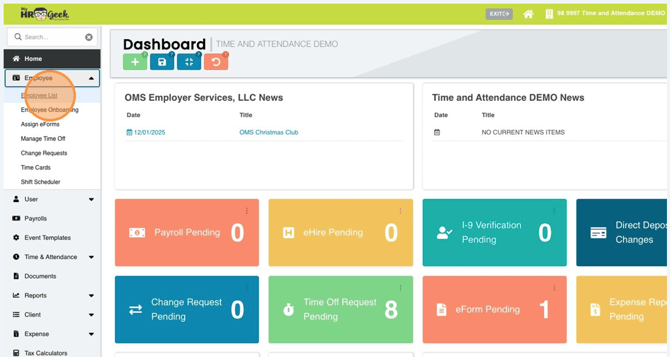
Then choose EMPLOYEE LIST.
Next, update the status filter from "ALL STATUS" to TERMINATED. Once you locate the employee that you want to rehire, click the H icon on the right to start the rehire process.

A pop-up will ask "Are you sure you want to REHIRE this employee?" Click OK to continue or cancel to return to the employee list.
When you click OK, you will be taken to the onboarding module where the employee's previous data will be automatically populated. Continue through the onboarding process to review and update information as needed.
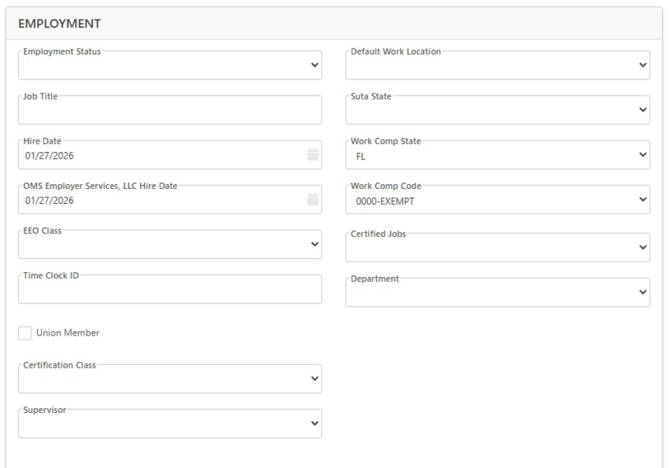
In the EMPLOYMENT section, review and update all required fields. If any required fields are not completed, you will get an error message, and they will be highlighted in red when you click NEXT.
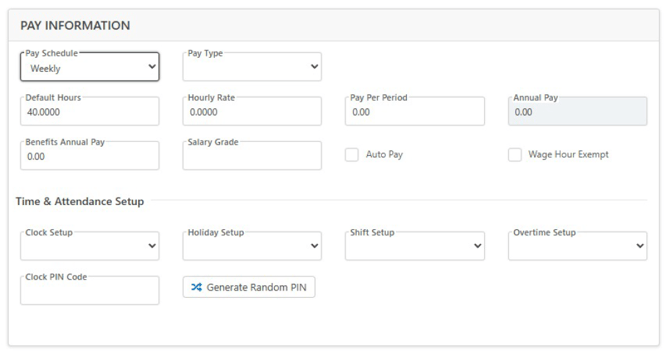
In the PAY INFORMATION section, review/update information. Select the Pay Schedule & Pay Type from the first dropdown menus. The applicable hourly rate/per pay period/annual pay field will unlock based on the selected Pay Type. When you're finished, click NEXT.
If you use Time & Attendance, assign the employee to the timeclock in the Time &
Attendance Setup section as well, if needed.
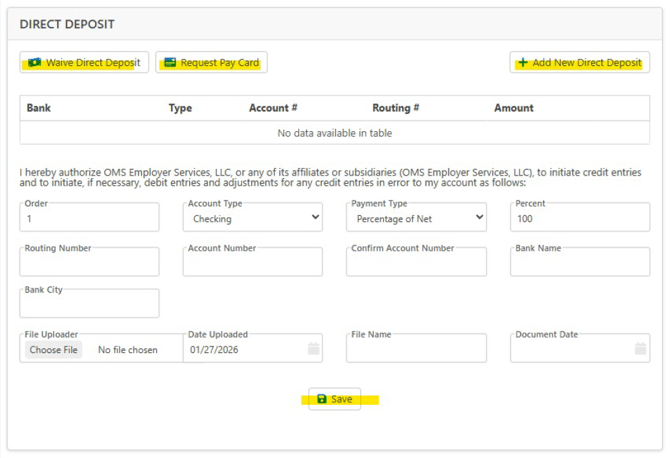
In the EMPLOYEE DIRECT DEPOSIT section, review and enter banking details.
• For Check, click Waive Direct Deposit
• For Pay Card, click Request Pay Card
• For Direct Deposit, enter banking details in the open fields. (Bank Name & City fields will autofill once you enter the account routing number).
Click Save and Banking details will populate in the table. Then click Next.
NOTE: When adding multiple direct deposit accounts:
Add the primary account first then Update the Account Type/Payment Type/Percent fields and be sure click the Save button before continuing. Then click the +Add New Direct Deposit button to enter the next account details. Note, at least one account should have Payment Type set to the Remainder option to ensure the remaining pay balance is issued appropriately.
Final Section REVIEW & COMPLETE, at this time please review all data for the employee and then click FINISH.
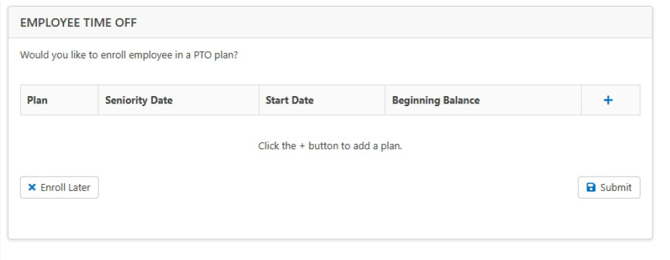
In addition, if your company has PAID TIME OFF (PTO) in our system, you will be prompted to add the employee to a plan.
• Click the blue + button to add a plan, then click Submit.
• Or choose the Enroll Later option, which will require the time off plan assignment to be completed in the employee card.