First, import your timecards, and change the Pay Type at the top of your timesheet to SALARY.

Affected employees will also have a Red Exclamation Icon next to their name. Hover over the icon to review the error message. In this example, the error message states that the employee has more hours than their indicated per-pay-period amount. (Entering the time off hours as a salary split will resolve this issue.)
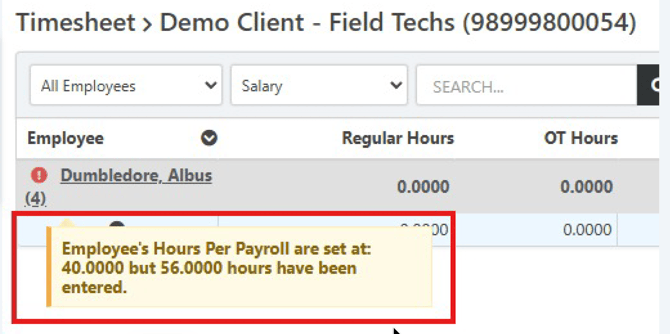
Look for employees who have hours in any of the paid time off codes (i.e. PTO, Sick, Vacation etc.). Any hours populated into time off columns will need to be deleted and added as a salary split. Remove hours from the applicable time off code column. Then click the Salary Split (paperclip) icon.

Enter hours and choose pay type from the dropdown menu, then click Split Hours. You are able to add multiple splits in this prompt.
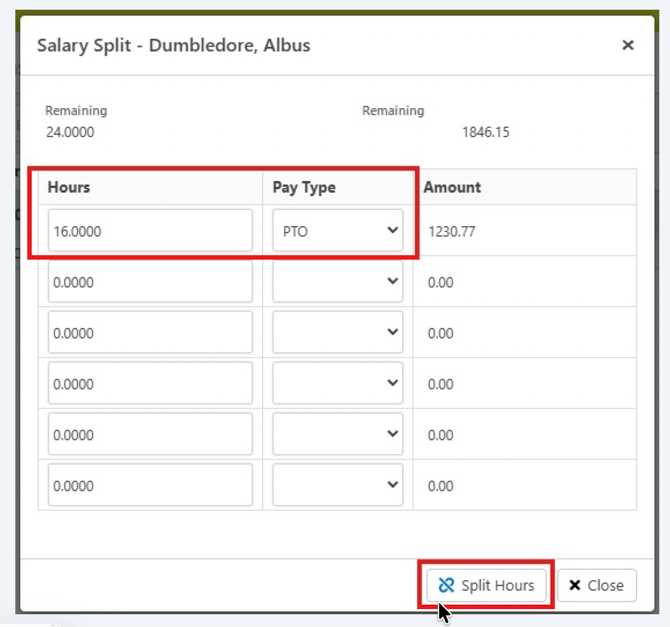
You will see that the hours entered in the salary split prompt will populate into the appropriate column and the salaried hours will be reduced accordingly.

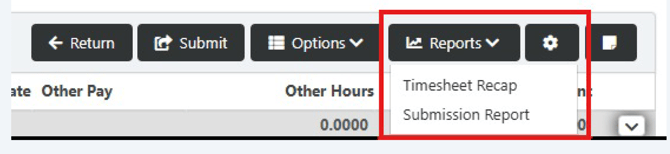
Set the filter back to ALL OTHER PAY to bring all employees back into the timesheet for review. Now from the Reports Tab (black button/dropdown), you can run the Timesheet Recap or Submission Report to ensure that the total salary is correct and that only the pay period total hours are being processed.