
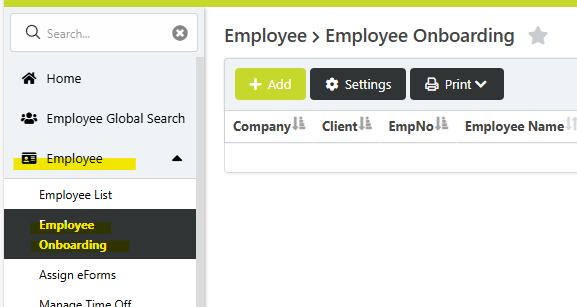
STEP 1: Navigate to the appropriate company and click the Employee tab, select Employee Onboarding from the dropdown menu, and then click the green +Add button.
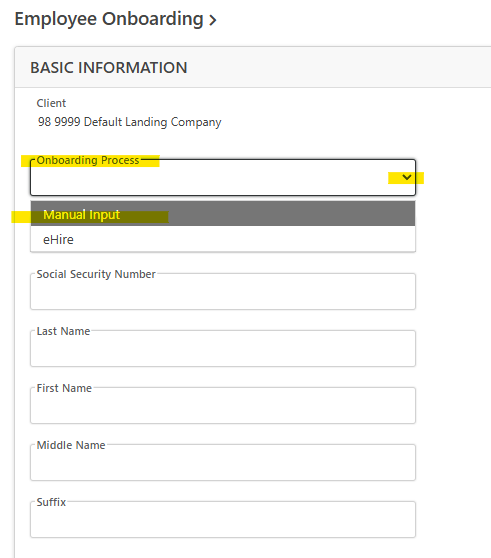
STEP 2: From the Onboarding Process dropdown menu, select Manual Input. Complete the remaining fields on the screen (SSN, Name), then click Next.
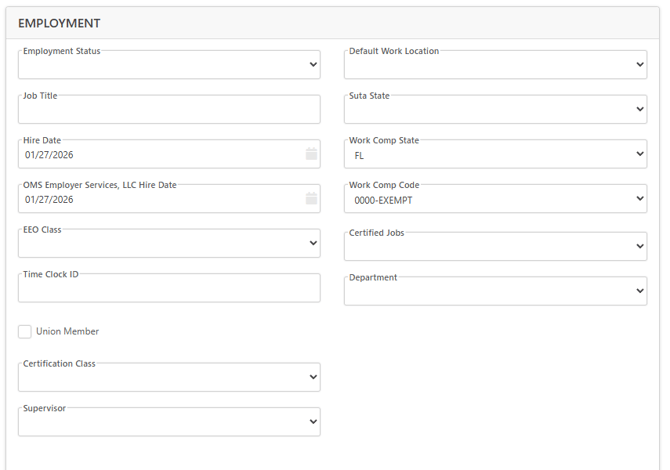
STEP 3: In the following Employment section, complete all required fields. You will not be able to proceed unless the required fields are completed. If the required fields are not completed, you will get an error message, and they will be highlighted in red when you click Next.
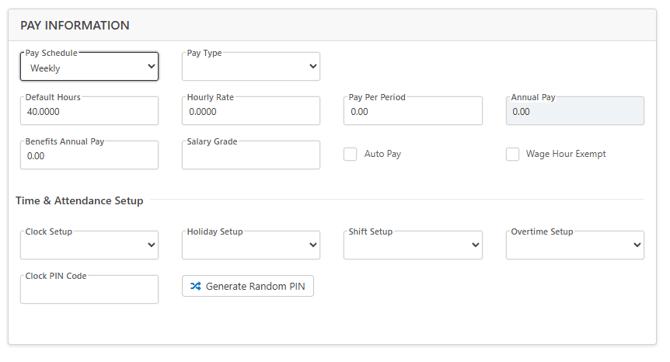
STEP 4: In the Pay Information section, enter the applicable information and click Next.
Select the Pay Schedule & Pay Type from the first dropdown menus. The applicable hourly rate/per pay period/annual pay field will unlock based on the selected Pay Type. If this group has Time & Attendance set up, you can assign the employee to the time clock in this section as well, if needed.
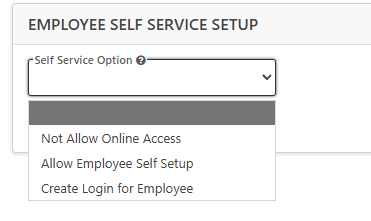
STEP 5: In the following section Employee Self Service Setup, you will need to choose an option from the dropdown menu. Then click Next.
What these options mean:
- Not Allow Online Access -> Employee will not have any access to MyHRGeek
- Allow Employee Self Setup -> Employee will receive an email to setup their login credentials to access HRGeek to review their information, paystubs, etc. (**We have been using this option if the employees will have access to the site**)
- Create Login for Employee -> You will be prompted to create the username on the employee’s behalf. (Username Options: Email/Phone#/Custom)
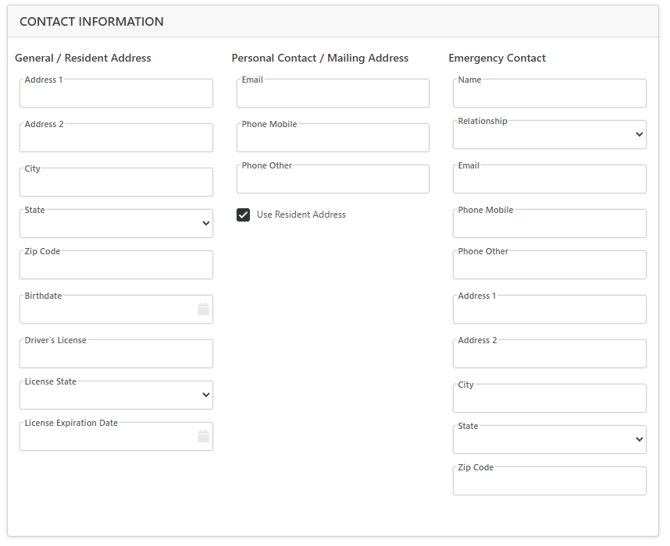
STEP 6: Complete the prompts for the employee’s Contact Information and emergency contact information.
You will not be able to proceed unless the required fields are completed. If the required fields are not completed, you will get an error message and they will be highlighted in red when you click “Next”.
- Required Fields: Employee Address, Birthdate, & Mobile Phone
- Please add all non-required information if it is available to you.
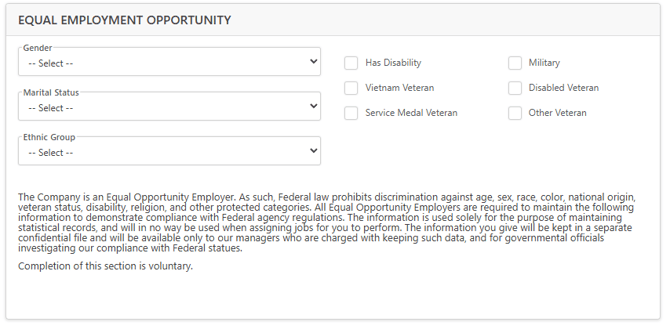
STEP 7: Complete the Equal Employment Opportunity section.
Complete fields if you have the information available, though it may not be required to proceed with the onboarding. Then click Next.
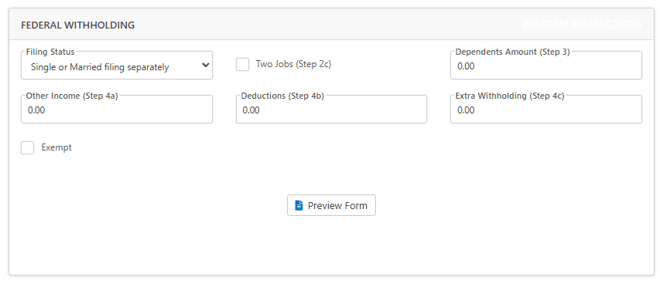
STEP 8: Complete the Federal Withholding section.
Enter the employee’s applicable withholding information (Required Field: Filing Status), then click Next. You can click the Preview Form button to review the electronic Form W-4.
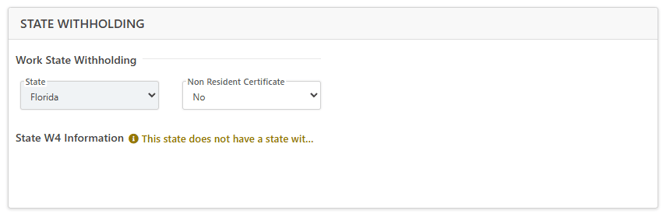
STEP 9: Complete State Withholding section (if applicable). Then click Next.
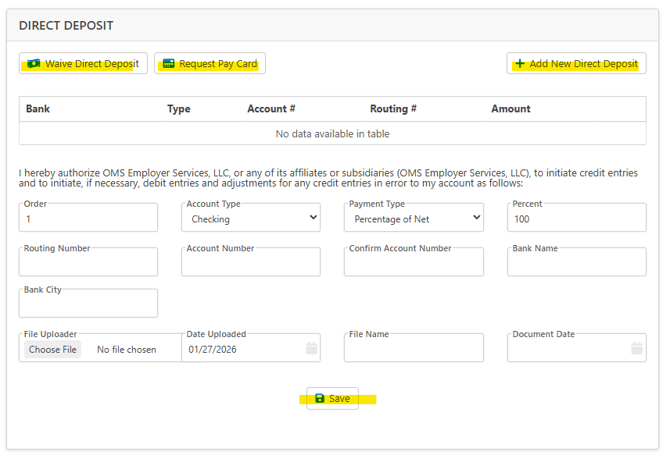
STEP 10: Enter Employee Direct Deposit information:
- For check, click Waive Direct Deposit
- For pay card, click Request Pay Card
- For Direct Deposit, enter banking details in the open fields. Bank Name & City fields will autofill once you enter the account routing number. Then click Save. Banking details will populate in the table, then click Next.
When adding multiple direct deposit accounts:
- Add the primary account first. Update the Account Type/Payment Type/Percent fields and be sure to click Save before continuing
- Then click the +Add New Direct Deposit button to enter the next account details.
- Note, at least one account should have “Payment Type” set to the “Remainder” option to ensure the remaining pay balance is issued appropriately.
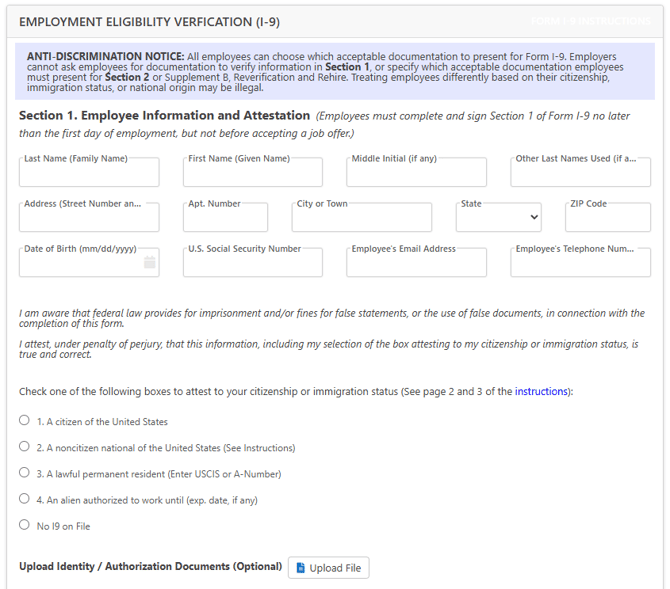
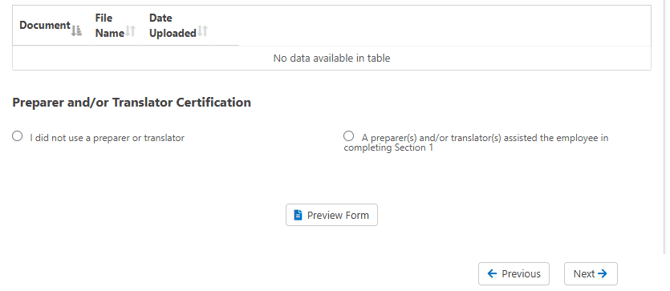
STEP 11: Complete the Employment Eligibility Verification (I-9) section. Enter all required employee information and click Next.
STEP 12: Complete the Documents section. Any applicable new hire documents will be stored in this section. Complete fields and click Next.
If Christmas Club form is available and they did not opt in, you can leave the amount field blank. (*Note, this does not automatically setup Christmas Club deductions. These will need to be setup outside of the onboarding process).
STEP 13: You've reached the Final section of manual onboarding- Review & Complete
You will be able to review all information entered for the employee. Once reviewed for accuracy, click Finish.
STEP 14: If applicable, the Employee Time Off section may need to be completed.
At this point, if the group has a time off plan, you will be prompted to add the employee to a plan.
Click the + button to add a plan. Click Submit or choose Enroll Later, which will require the time off plan assignment to be completed in the employee card.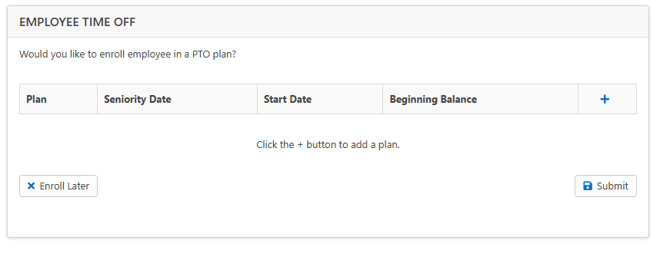
The employee will now reflect in the Employee List for your group. Additionally, depending on the Employee Self Service Setup type selected earlier in the onboarding process, the employee will be sent an email from alerts@myhrgeek.com to log in to MyHRGeek.com. If the Allow No Access option is selected, then no email is sent to the employee.