![logo2020OMSwhite.png]](https://support.omsgroup.com/hs-fs/hubfs/logo2020OMSwhite.png?height=40&name=logo2020OMSwhite.png)
Login to your Supervisor Portal at myhrgeek.com
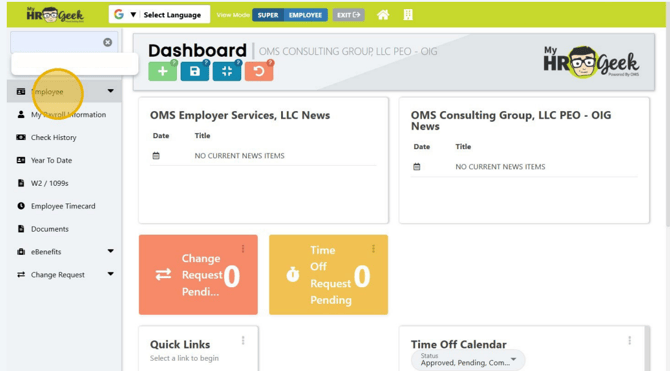
Click on Employee in the main menu on the left side of your dashboard.
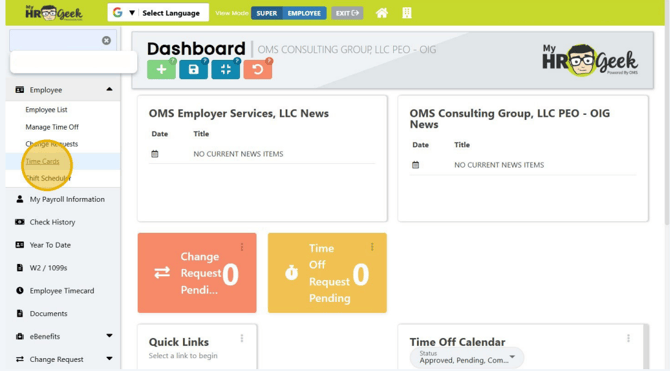
Then click on Time Cards from the dropdown.
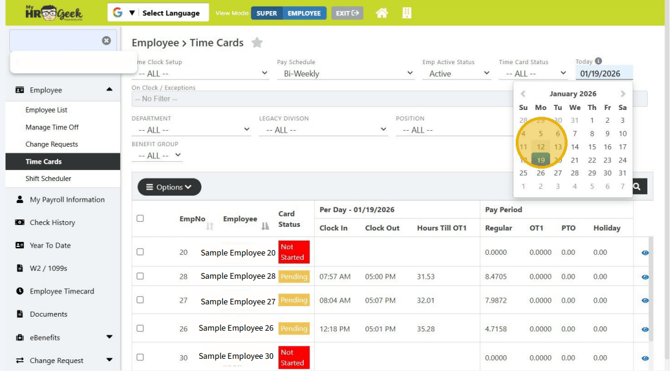
This screen will pull the current punches for the current pay period. If you are approving time cards in preparation of payroll, click on the Today calendar and choose a date that falls within the pay period you wish to approve.
Alert! Find any employees who have an orange circle next to their name. This means they made a change to their punch record, and you must approve it.
Double-click on the employee who needs review.
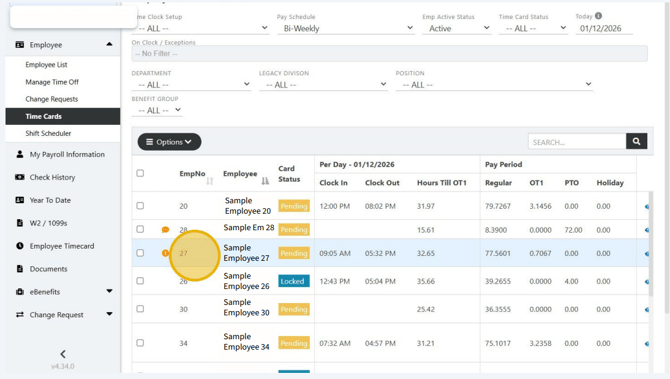
Find the orange circle on the EE Time Record. Review the change and any notes present and click Approve if you agree with the update.
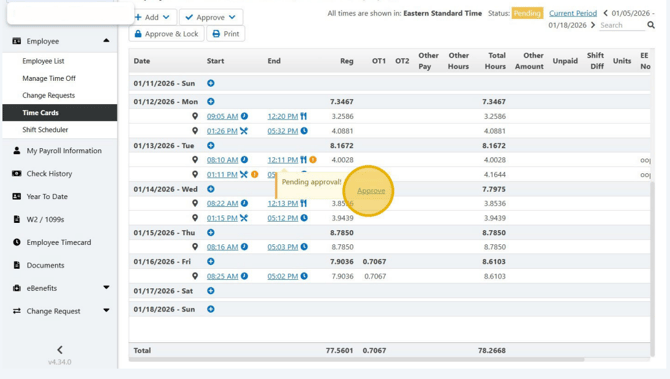
Next, click Return.
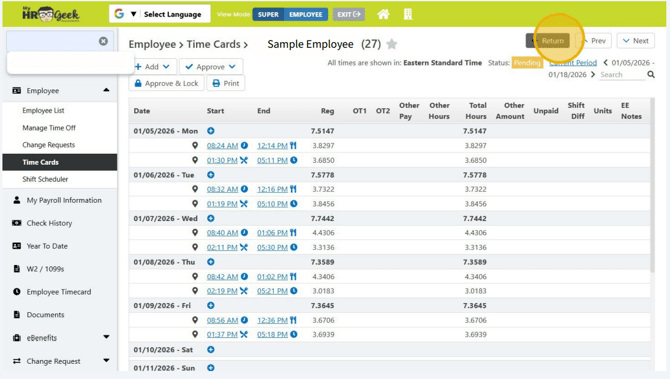
Alert! Alert! Find any employees who have a red triangle next to their name. This means they missed a punch and will need to have their time adjusted or added.
Double-click on the Employee Name.
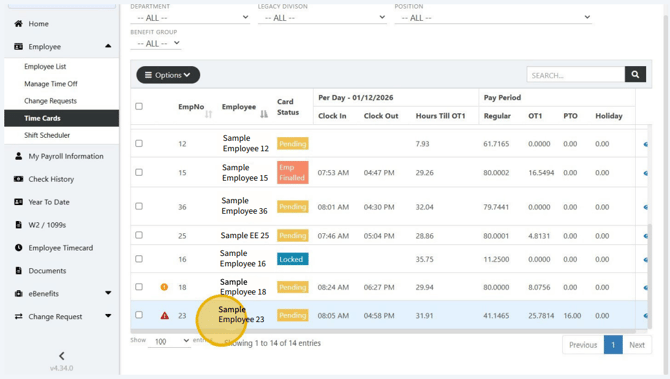
Review their record for the red triangle. In some cases, a full punch will be missing and you will need to input the In and Out Time. For this example, it appears as though the employee clocked in too many times without an out punch but intended to clock in at 1:45pm.
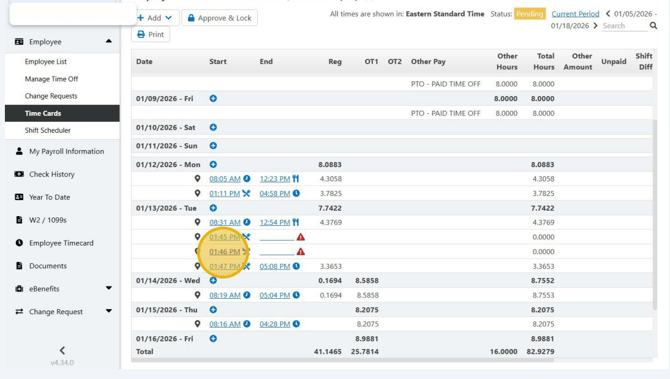
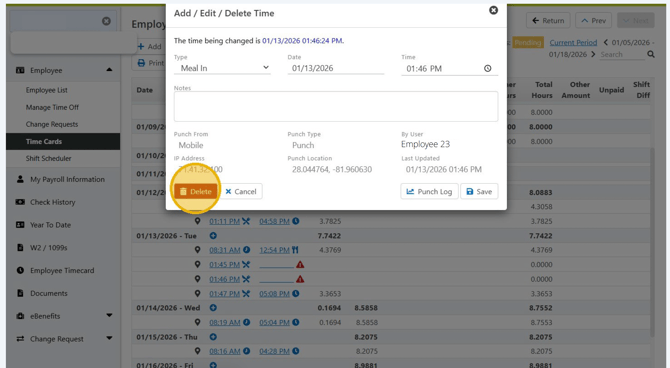
Click one of the red punches and then click Delete.
Click the latest red punch.
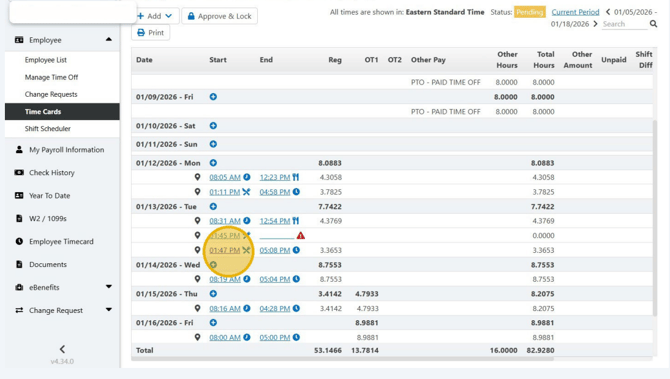
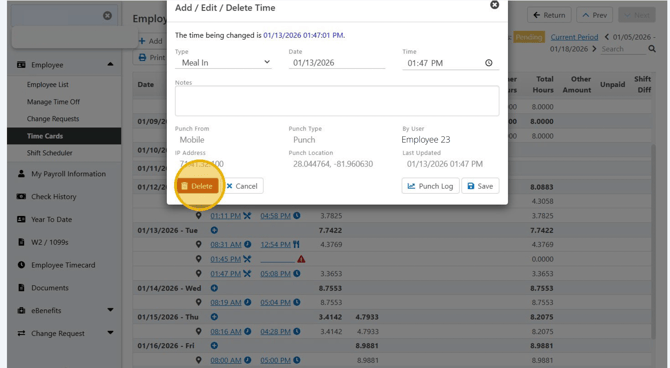
Click Delete. This will update her time to reflect she came back from lunch at 1:45pm and clocked out for the day at 5:08pm.
Then click Return.
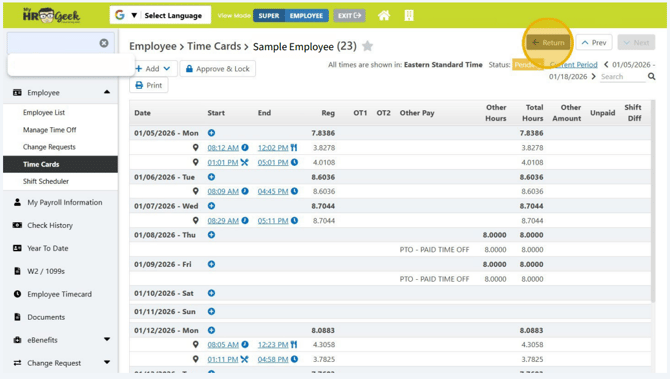
Click Return again.
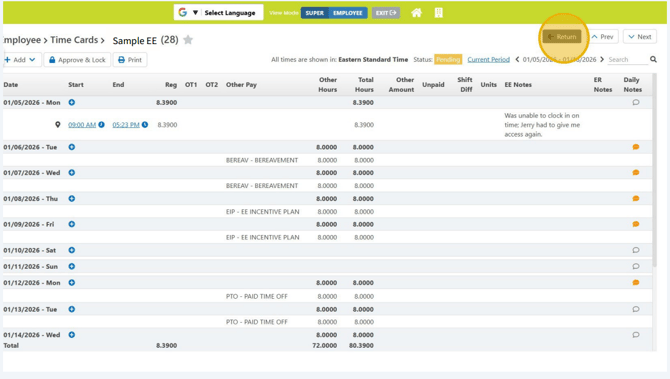
Tip! If you are already aware of pending changes and do not need to access each record individually, you are able to approval all changes at once.
Click the Checkbox at the top of the column of boxes.
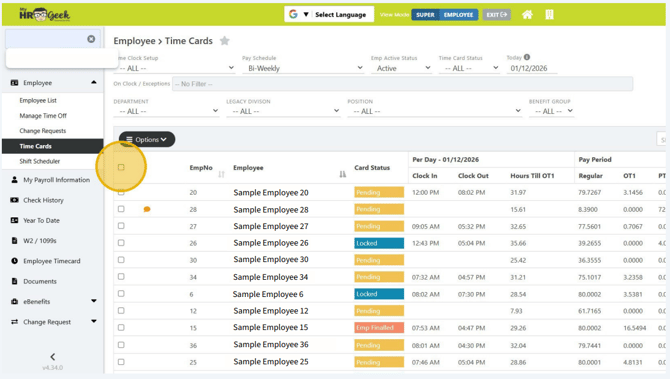
Then click the Options menu.
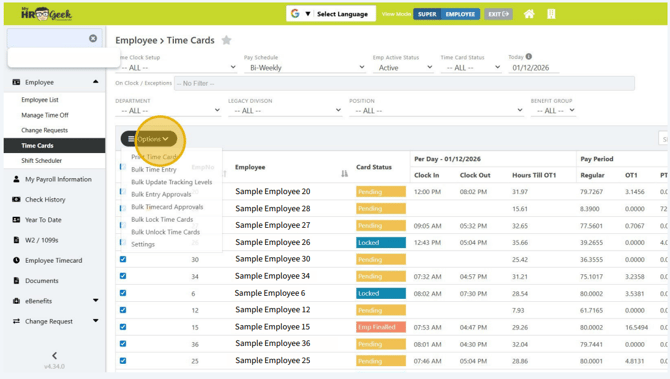
Select Bulk Entry Approvals from the dropdown.
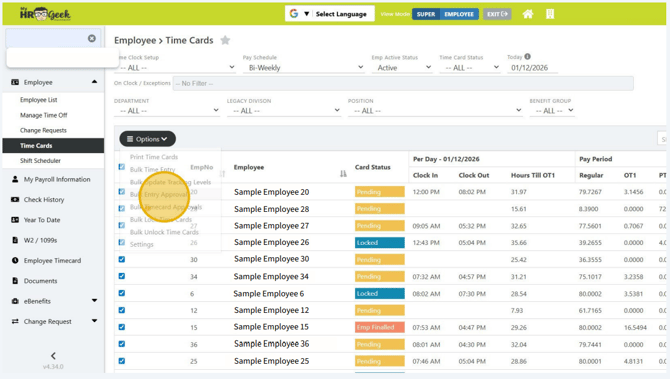
Click the blue Entry Approve Button on the pop-up window.
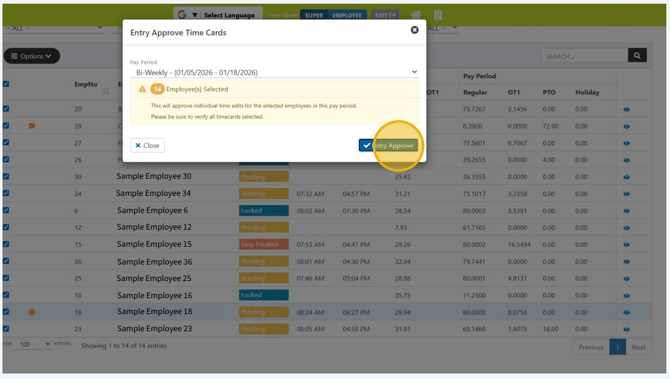
Alert! Once you have approved edits and PTO time, you must approve the ENTIRE timesheet for each employee. You can do this one by one or you can...
Click the Checkbox at the top of the column of boxes.
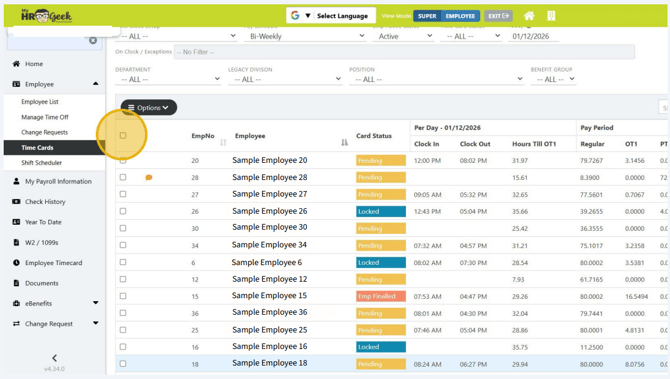
Then click the Options menu and select Bulk Entry Approvals from the dropdown.
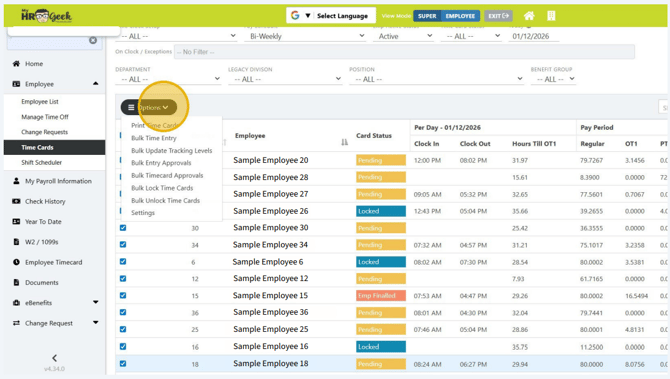
Click the blue Approve Time Card Button on the pop-up window.
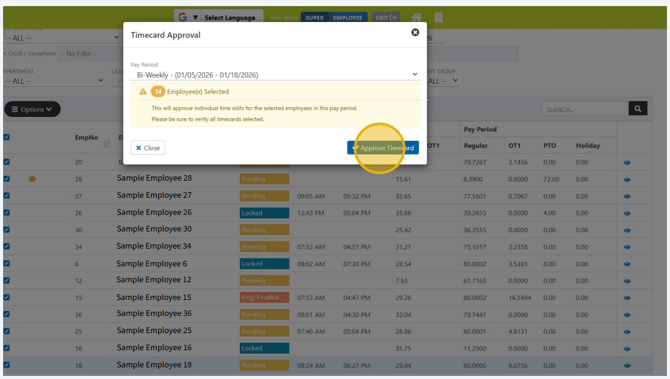
Alert! If there is a secondary manager who approves your department's time, your job stops here. If you are the last approval rung on the payroll ladder, you must LOCK the timesheets so they will pull into the payroll timesheet when the Payroll is created.
Just like approving the timesheet, you can click each person individually and lock their timesheet or you can... Click the Checkbox at the top of the column of boxes.
Click Options, and click on Bulk Lock Time Cards from the dropdown menu.
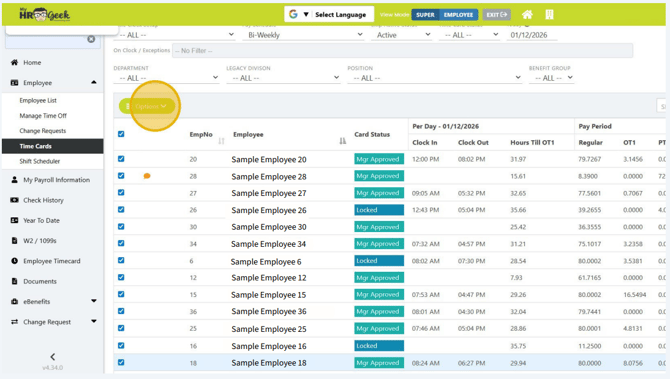
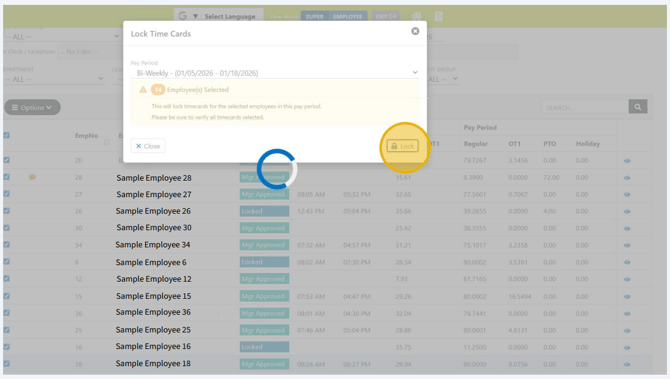
Click the Lock button. Now your assigned timecards are locked and can be processed during the payroll cycle.