
Path: Login to MyHRGeek.com > Payrolls
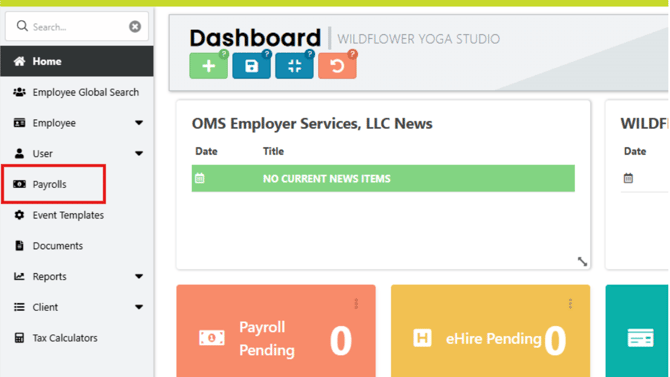
Click “+ New Payroll”

Select “Payroll Type” from the dropdown menu
• Normal – Regular schedule payroll run
• Interim – Off-Cycle payroll
(*Note, if processing interim payroll, select desired check date.)
Under “Bring In To Payroll” > uncheck “Hourly-Auto Pay Hours” to ensure hours are not auto populated into the hourly employee pay lines.
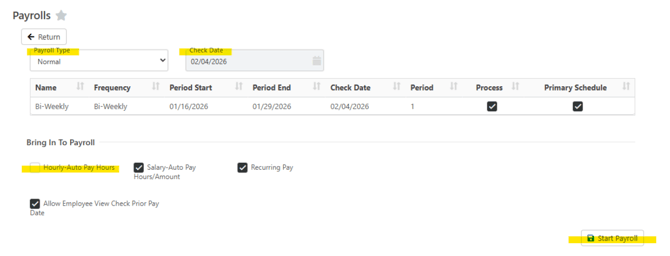
Click “Start Payroll” to open the timesheet for editing.
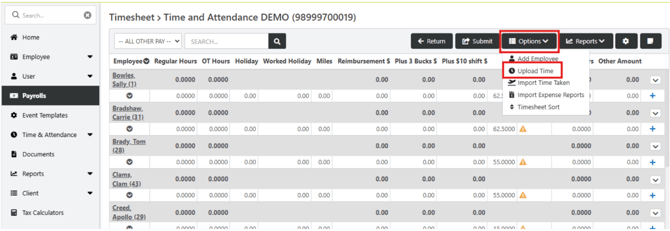
To import data from employee timecards, click Options > Upload Time.
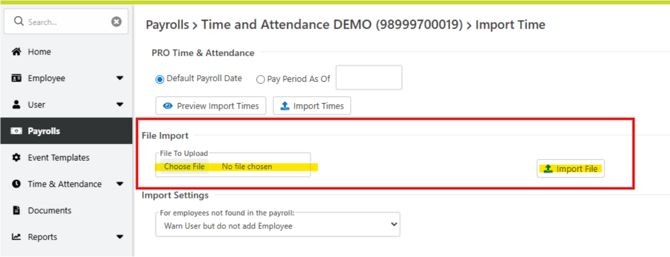
If using HRGeek timeclock, select “Default Payroll Date” > “Import Times”
*Note, you can select the “Preview Import Time” option if you would like to review prior to
importing.
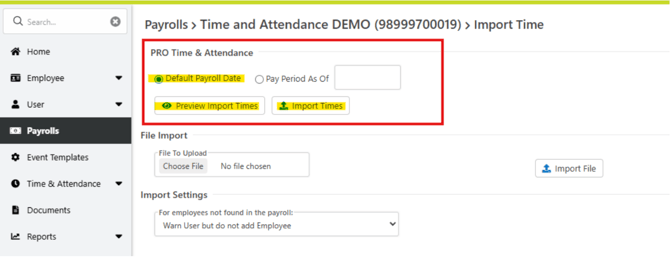
If using an outside timeclock, under the File Import section > upload your CSV file by
selecting the “Choose File” button. Then click “Import File”.
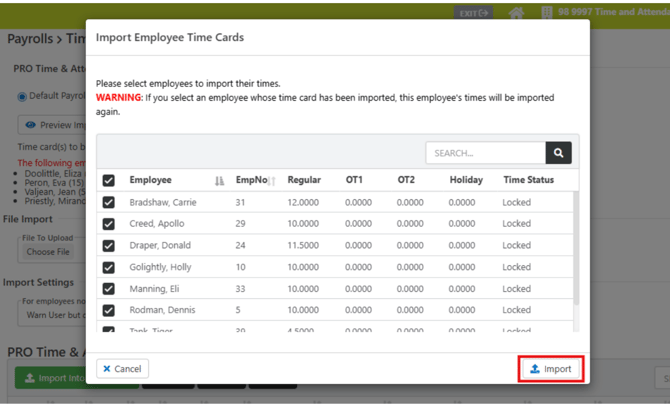
Check the boxes to select employees to import their time > Click “Import Time”
*Note, if you have previously imported their time for the applicable pay period, it will be imported again causing duplicate hours in the timesheet if they are selected to be imported.
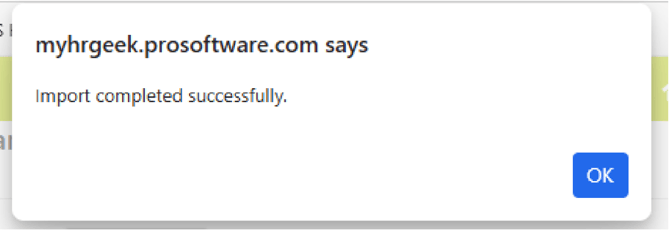
When the import is completed, you will receive a pop-up notifying you the import was
successful. Click “OK” to return to the payroll timesheet.
Data from the employee timecards will now reflect in the timesheet.
Review to ensure all information is correct > click “Submit”
After importing and entering hours/amounts into the timesheet, you can review reports
prior to submitting the payroll for processing.

In the timesheet > From the Reports dropdown menu:
• Timesheet Recap
• Submission Report
Once the reports have been reviewed, click on the Submit icon.

After starting the payroll, you may click on the “Return” icon at any time to exit the
timesheet entry screen.
You will be able to come back to the payroll by navigating to “Payrolls” and clicking
“Continue”.

After submission, your payroll specialist will run the tax calculations. You will receive an
email from alerts@myhrgeek.com stating that reports are ready for your review and final
approval.
Login to MyHRGeek.com > Payrolls > Reports to access your preliminary payroll reports
and to provide final approval.

When you are satisfied with the report data, click "APPROVE".
A pop-up will appear to confirm the approval. You will need to acknowledge this message
and click “Approve”.
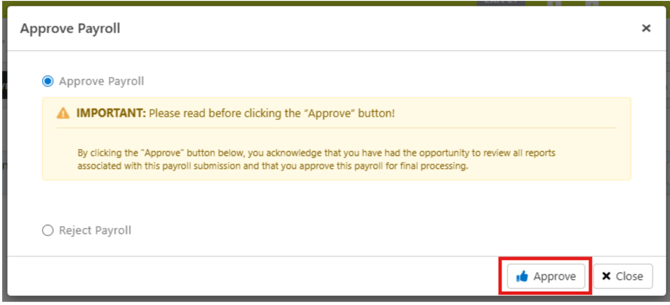
This will notify your payroll specialist that your payroll is complete. The payroll specialist will generate your checks/DD vouchers and post the payroll.
Once payroll has been completed, you will receive an email notifying you payroll has been finalized.