If the employee has previously signed in and created a password, you can reset their password if they encounter a problem accessing their account.
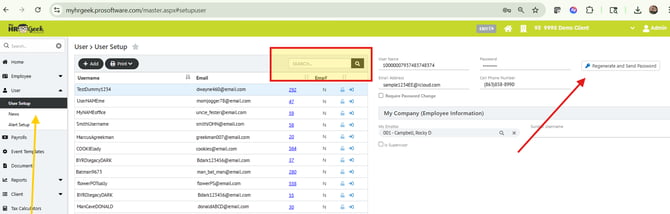
First, log in to your administrative dashboard. Choose the company the employee works for. From the main menu on the left, under User, select User Set Up (yellow arrow). Next, in the search field, search for the employee by name (highlighted box).
1. Verify their email address is correct.
2. Click the Regenerate and Send Password button (red arrow).
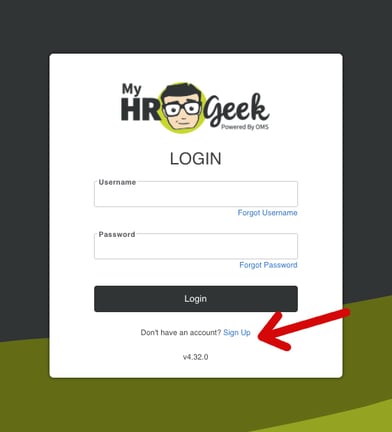
If the employee is not listed as a User in the list, then they have not completed the steps to Sign Up for an account. The employee should go to MyHRGeek.com and click the blue Sign Up link, then complete the requested information, including the CLIENT ID.
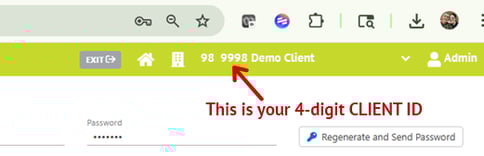
Every OMS customer has a unique CLIENT ID, as an administrator, you can find your CLIENT ID by looking in the top right corner of your dashboard. The Client ID is a 4-digit number in the green top bar. Please provide this to your employees so they can sign up for an account.