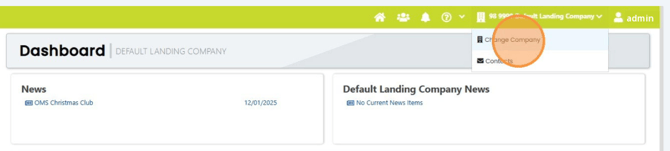
If you have more than one company assigned to you, be sure you are logged into the correct company. To change your company, use dropdown in the top section to select the company you need to make updates in.
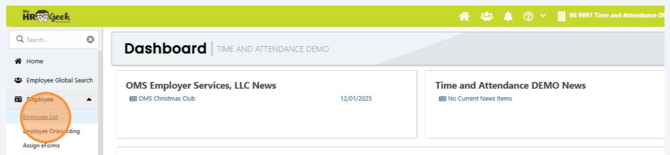
Click Employee in the main menu on the left, and choose Employee List from the dropdown.
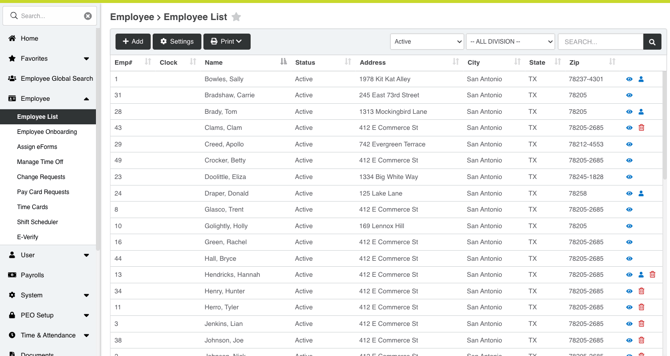
Then double-click on the name of the employee (or click the blue eye icon on the right side of the page).
Then click on the Time & Attendance tab.
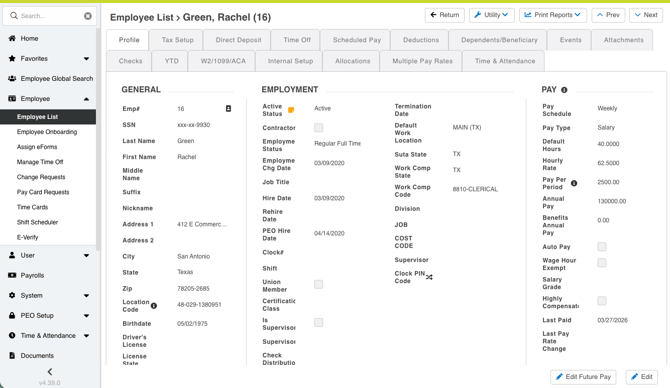
Select the Clock Setup option from the Setup Type menu.
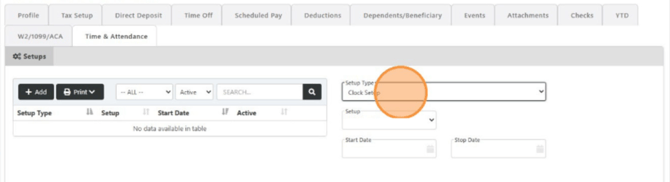
Enter the effective/start date, and click the Save button in the lower right corner.
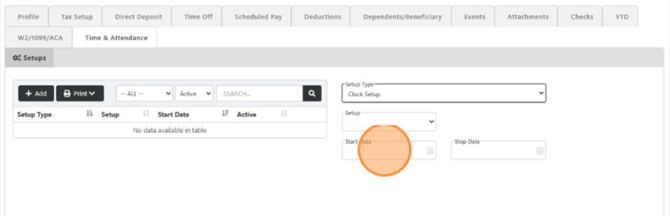

Next, click Add to pull in each category that will pertain to the employee. The clock, holiday, shift (if used), and OT schedules are each assigned separately. Only add the items pertinent to the individual based on employment status.
EXAMPLE: Part-time employees may not be eligible for holiday pay, so you would not apply the holiday rules to them.
If your company rules include holidays, add Holiday setup, click the green +ADD button.
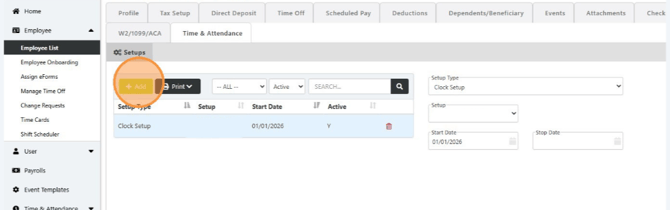
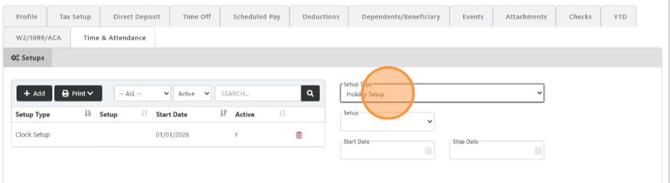
Click the Setup Type dropdown menu, choose Holiday Setup.
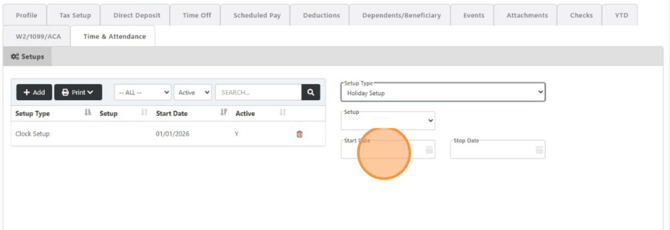
Enter the effective/start date, and click the Save button in the lower right corner.
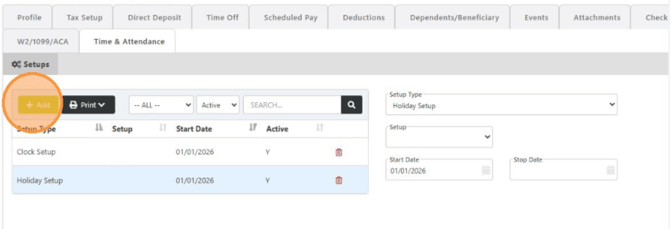
To add Overtime setup, click the green +ADD button. All full time employees should have the OT setup option.
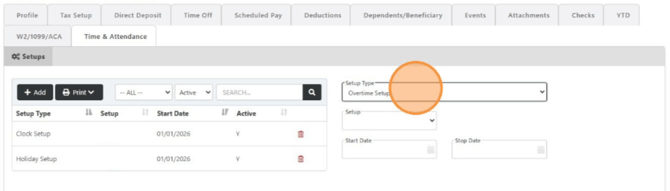
Click the Setup Type dropdown menu, choose Overtime Setup.
Enter the effective/start date, and click the Save button in the lower right corner.
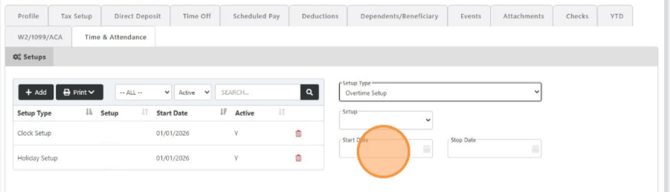
Continue adding each type until all rules are assigned. Be sure to save each record. The employee will now show up under the main menu EMPLOYEE > TIME CARDS.
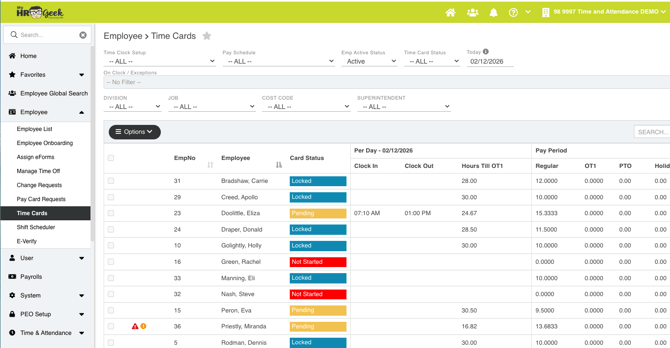
To add the time clock during onboarding:
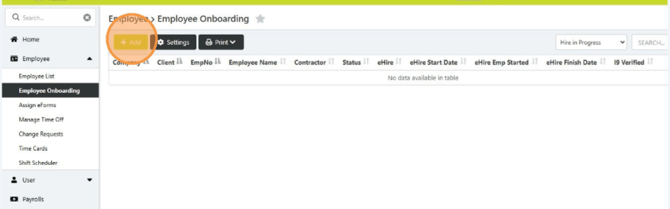
Navigate to the main dashboard and select Employee from the main menu on the left, choose Employee Onboarding from the dropdown. Then click the green +ADD button.
Select the appropriate onboarding option.
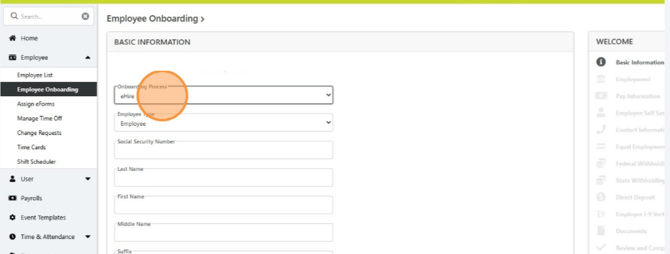
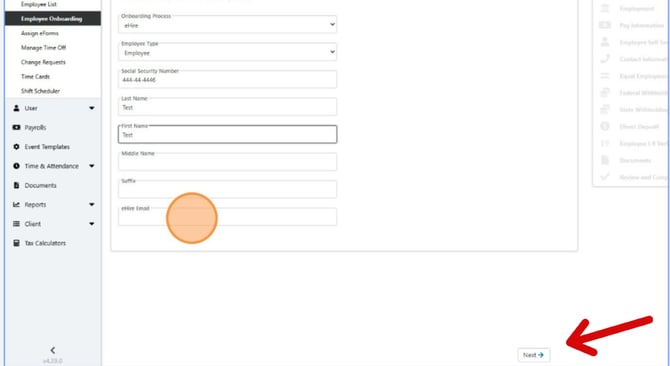
Enter the required information in each section. And click NEXT.
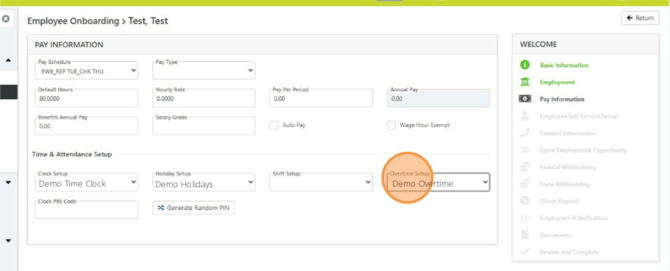
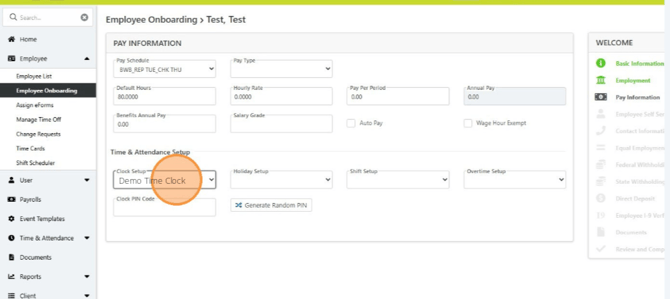
When you get to the third task, there is a Time & Attendance setup section. To assign the time clock module to the dashboard, enter each category for time, holiday and overtime that pertains to the employee. Select the corresponding name from the dropdown box.
Select the Holiday option.
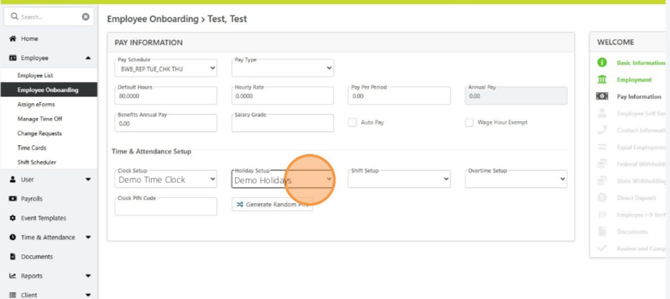
Select the Overtime option. Then click NEXT in the bottom right to continue onboarding.