
First, navigate to the employee's profile tab, from the main menu, click on Employee > Employee List, and select the employee by double-clicking on their name or clicking the blue eye icon in their row.
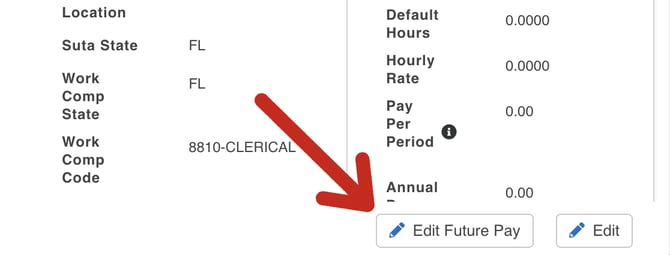
From the EMPLOYEE PROFILE tab, click on EDIT FUTURE PAY, in the bottom right corner.
Edit the pay in the PAY SECTION and click SAVE. When you click SAVE, a pop-up will ask you for the effective date of the new pay rate. This is where you designate the FUTURE DATE for this pay to start. Then click SUBMIT.
For this example: Record is created on 7/1 for the effective date 7/3.
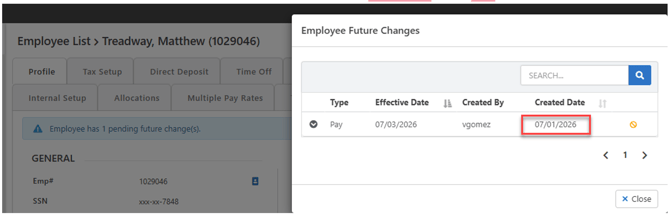
Running Payroll:
For this example, the pay period is 7/1 – 7/15 for a check date of 7/15.

Start the payroll, the record will be GREEN and the carrot (🔽) will be flashing.

If the timesheet is open BEFORE the effective date of the new rate, the old rate will appear. If you want to see the new rate, you need to wait until the effective date of the rate to start the payroll.

Enter the hours for the old rate and hours for the new rate. Click SPLIT HOURS.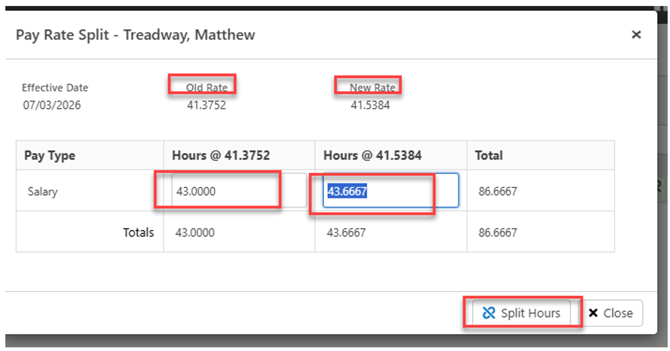
Here's what those split hours look like on the timesheet.
