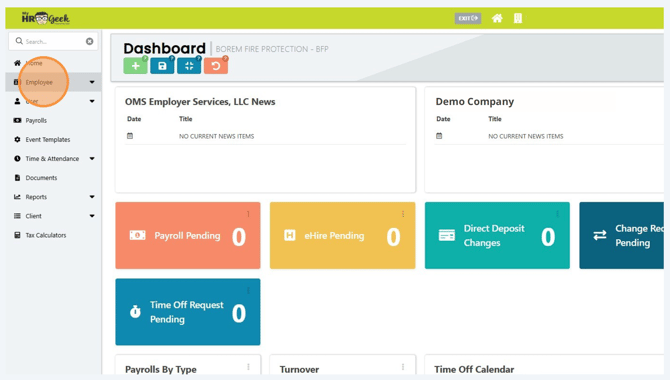
Log in to myhrgeek.com and click on Employee in the main menu on the left side of the page.
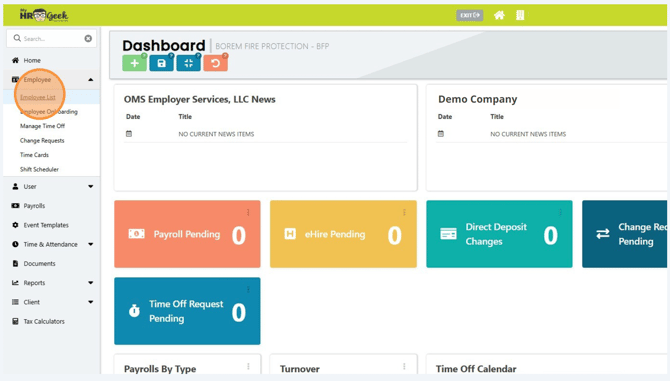
Then click Employee List.
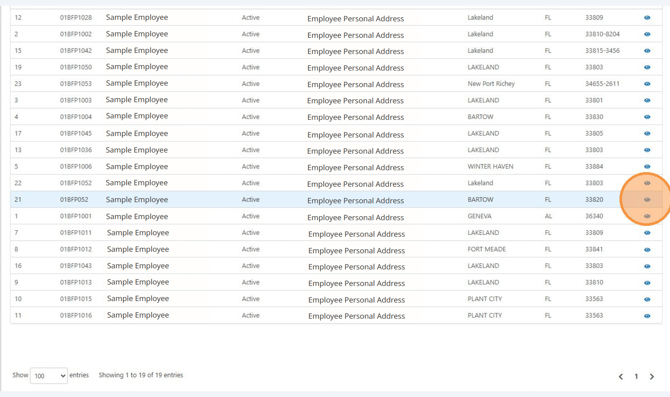
Find the employee from your list and click the "view details" to open the employee profile.
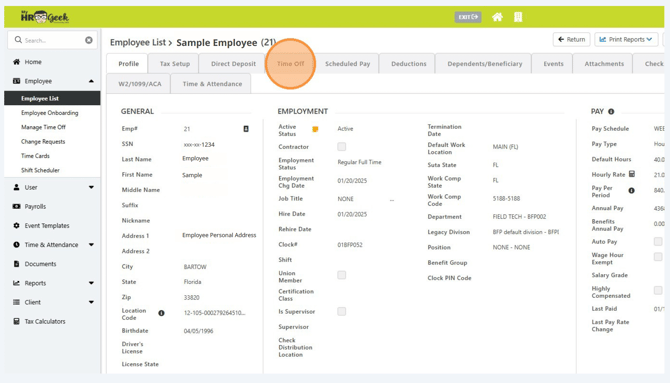
Click the Time Off tab.
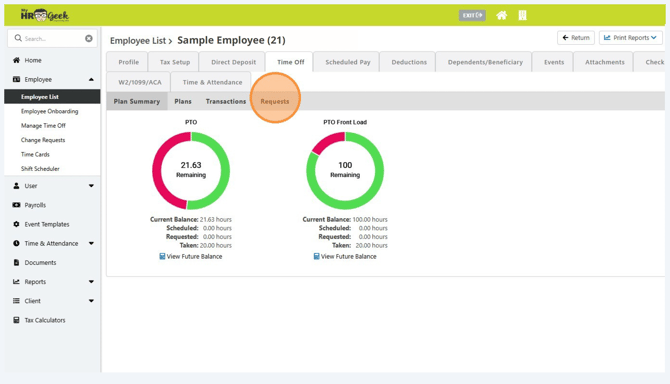
Click Requests.
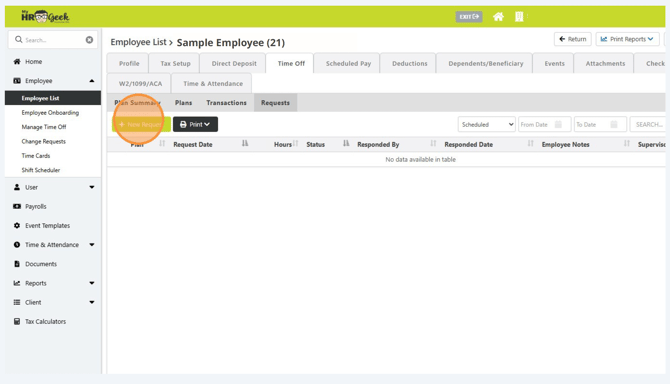
Click New Requests.
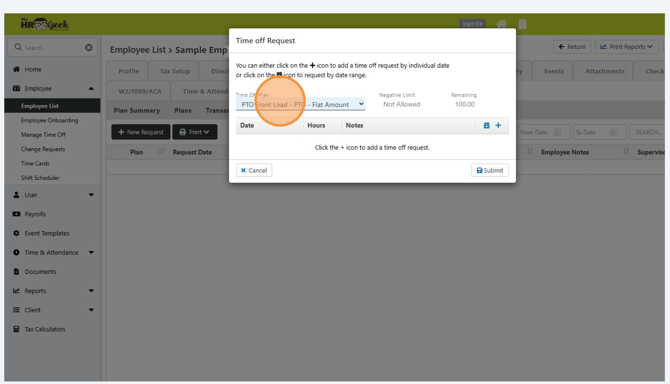
From the pop-up window, choose the correct time off plan from the drop down box.
To add dates, click the + plus button.
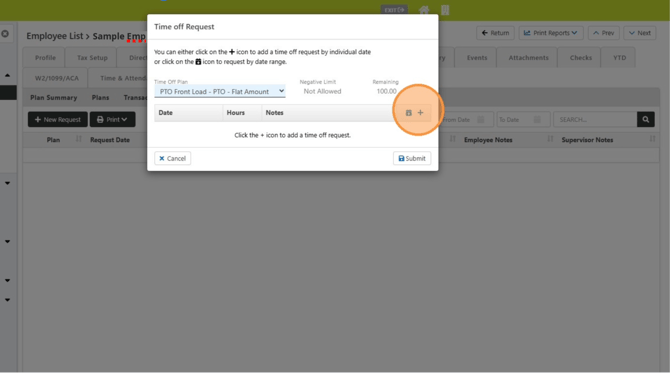
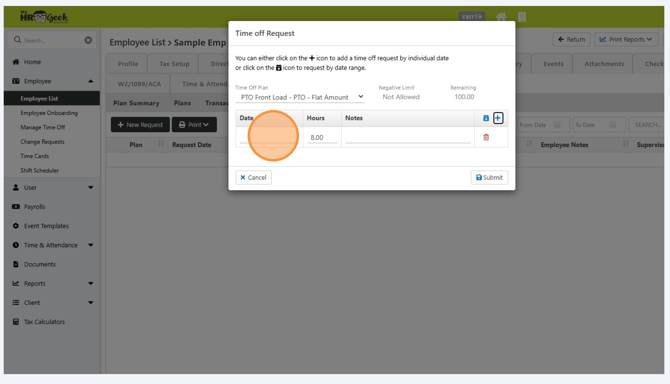
Enter the date(s) for the time off. Each day will need to be entered separately. To add additional days, continue to click the + plus button.
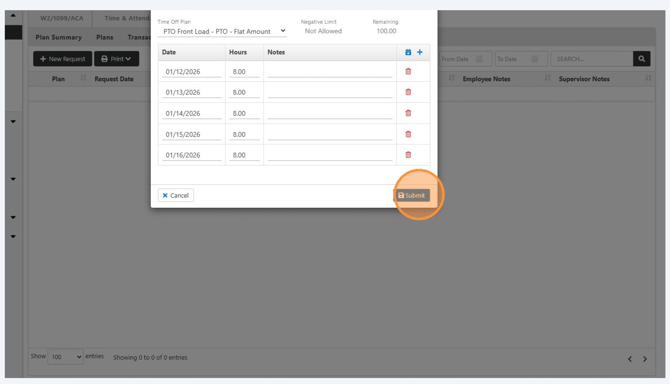
Continue adding dates until the entire time off period is listed in the request off window. Then click submit.
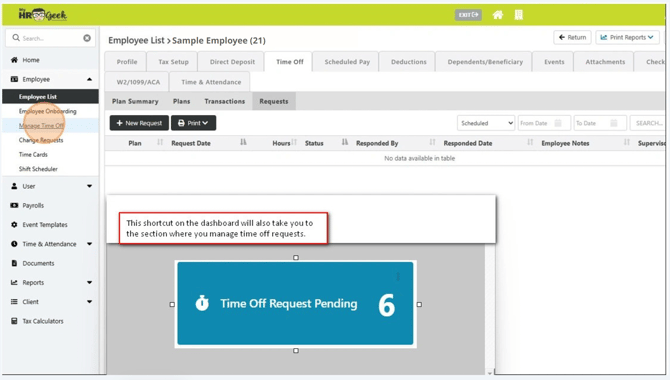
To approve the time off requests, click Manage Time Off from this menu or click the shortcut from the dashboard labeled Time Off Requests Pending.
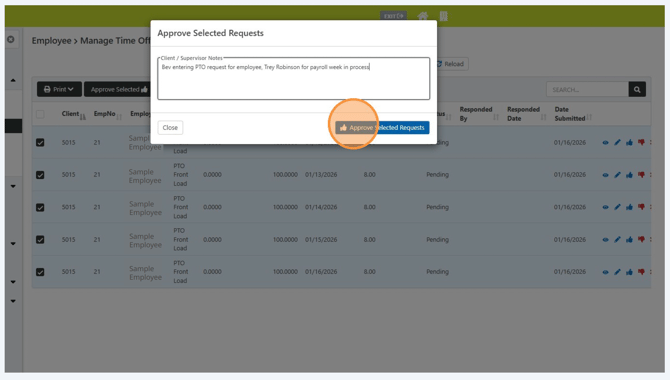
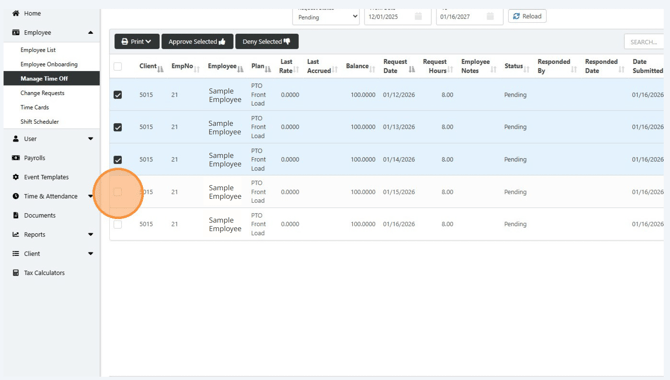
Check the box next to each time off request you need to approve.
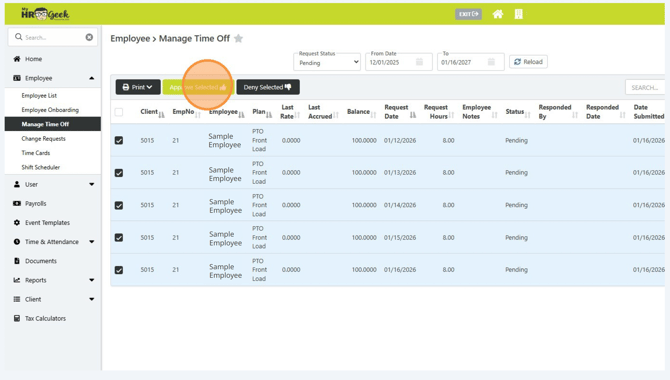
Click Approve Selected.
Click this text field to leave a note.
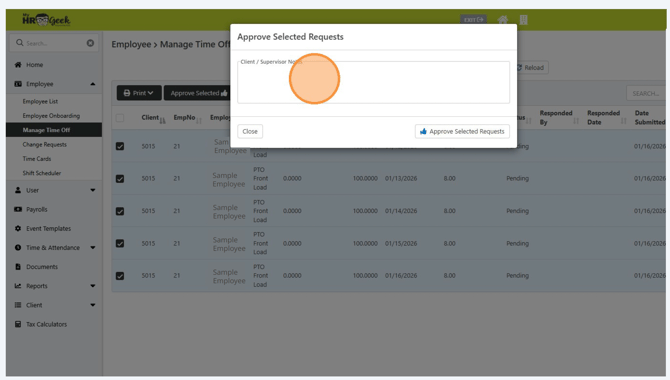
Click Approve Selected Requests.