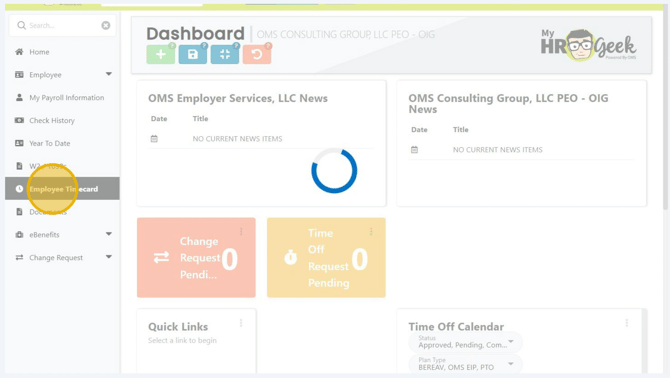
Log in to your employee account at My HR Geek and click on Employee Timecard in the main menu on the left.
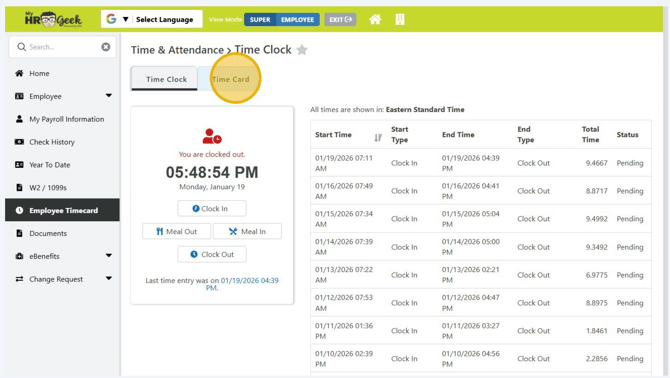
This will display your current clock status and viewable history. Click on the Time Card tab at the top of the page.
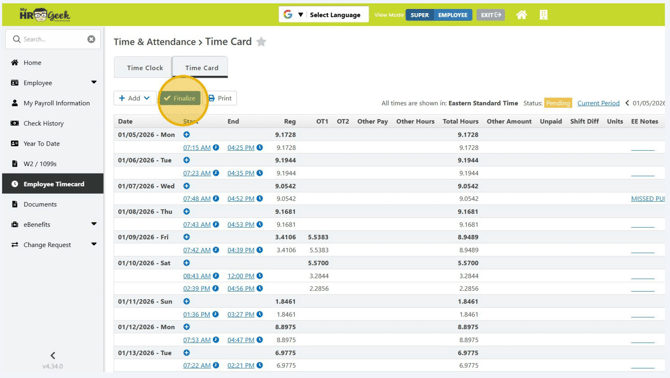
Review your punches to ensure that all time off requests have been added and approved and any adjustments have been approved. Then click FINALIZE.
Note: If you still have punches or PTO that needs to be approved by your supervisor, you will be unable to finalize your timesheet until those items are approved.
Alert! If you did not add your Time Off Requests BEFORE the pay period ended, you will have to submit these to your supervisor in order to input. The best practice is to input the time off before or on the day you are out of work so you can ensure there are no delays in your payroll.
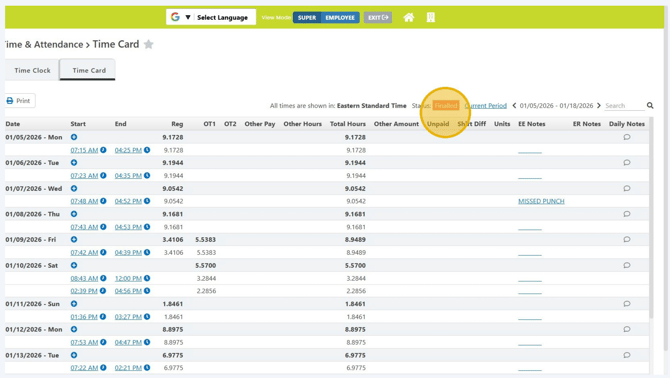
Once you have finalized your timesheet, the pay period status will show as FINALIZED.