
Follow along with Erica in this teaching tutorial video, or scroll down to see the step-by-step screenshot instructions below. All of these instructions are generated using our demo company. If you use Time & Attendance, click this link to watch our other video for running payroll using our timekeeping system.
Sign in to myhrgeek.com and click Payrolls.
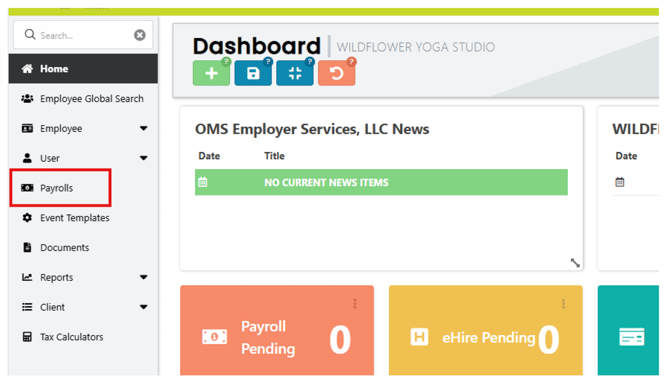
Click New Payroll.
 Select Payroll Type from the dropdown menu
- Normal – Regular schedule payroll run
- Interim – Off-Cycle payroll
Under Bring In To Payroll, uncheck Hourly-Auto Pay Hours to ensure hours are not auto-populated into the hourly employee pay lines. Then click Start Payroll to open the timesheet for editing.
Note, if processing Interim payroll, select the desired check date. An Interim Payroll refers to payments made outside of the regular payroll cycle, for example, a bonus run or adjustment.
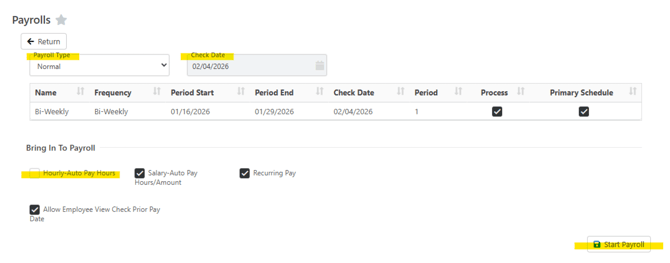
This is what your timesheet should look like. This is our demo company that we use for tutorials .
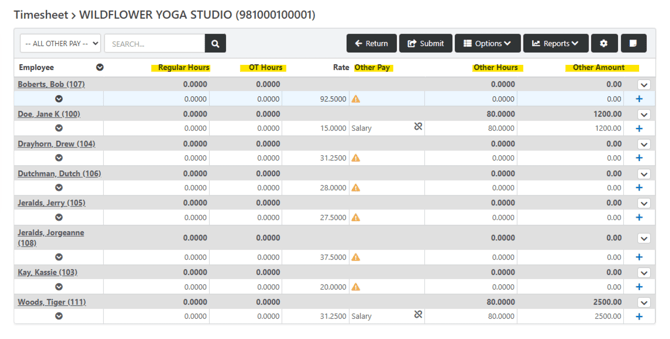
To edit an employee’s time on the timesheet, click into the employee’s second line item under the applicable column to enter the hours/amounts. (The row with the employee name is the totals row.)

Additional pay codes can be selected by clicking into the Other Pay column. Then enter either Other Hours or Other Amount.

To add an additional line item, click the + on the far-right side of the employee pay line. This will allow you to select and process another pay code under the Other Pay column. To remove the additional line item, click the delete icon.

Notes:
- Salary hours are auto-populated into the Other Hours column.
- Hover over yellow triangles or red exclamation marks to review important pay line notifications.
- The timesheet may have different colored pay lines. That is because employees can be in different statuses.
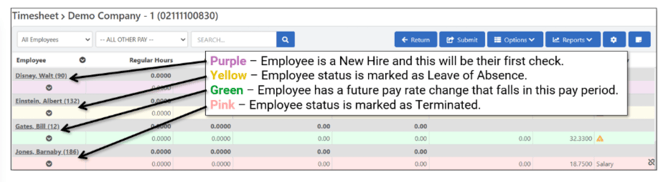
After entering all hours/amounts into the timesheet, you can review reports before submitting the payroll for processing.

Review Reports. In the timesheet, from the Reports dropdown menu, choose Timesheet Recap and/or Submission Report. Once the reports have been reviewed, click on the Submit icon.

You can exit and re-enter the payroll anytime during editing. You may click on the Return icon to exit the timesheet entry screen. Come back to the payroll by navigating to Payrolls and clicking Continue.

After submission, your payroll specialist will run the tax calculations. You will receive an email from alerts@myhrgeek.com stating that reports are ready for your review and final approval.
Log in to MyHRGeek.com and from the main menu, click Payrolls, then click Reports to access your preliminary payroll reports and to provide final approval.
If your company has access to our Automated Payroll feature, you will not have to submit, wait, and login again for reports. Everything will happen automatically when you approve your own payroll. If you'd like to know more about this feature, please talk to your payroll specialist.
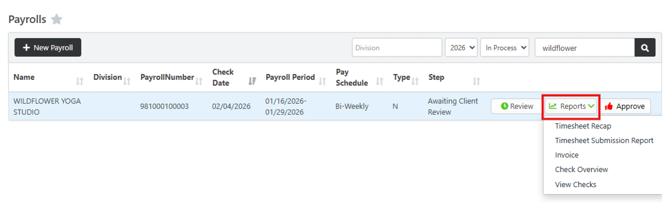
When you are satisfied with the report data, click APPROVE.
You will need to acknowledge the message and click APPROVE again. This will notify your Payroll Specialist that your payroll is complete. The Payroll Specialist will generate your checks/DD vouchers and post the payroll. Then you will receive an email notifying you that payroll was finalized.