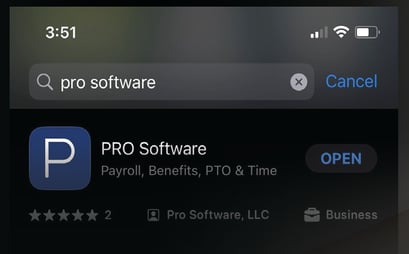
First, visit the app store and search for Pro Software (that's our developer's name).
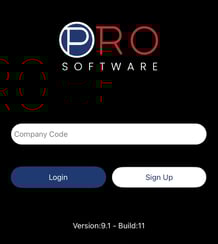
Once you have the app downloaded to your device, open the app. First-time login will prompt users to enter a company code. Your company code is myhrgeek.

.jpeg?width=196&height=247&name=IMG_5950%20(1).jpeg)
Note: If you don't already have a user profile, the user would click the Sign-Up button and follow the instructions from there. You'll need your employer's specific client code to proceed with the Sign up option.
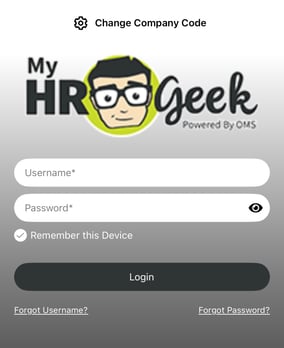
If you already have a user account, just click Log In. The user will be redirected to the MyHRGeek login page. Users should use their normal employee user credentials to login as they would on the site.
The user will be asked if they wish to use Biometrics to log in for subsequent logins. If the user chooses to use biometrics, it will use their device’s biometric security to login for all future logins.
Users MUST have biometric security enabled (facial recognition or fingerprint scanner) for their device to use this feature. Users should ensure they set this up prior to login if they wish to use this feature.
The user will be prompted to enter a verification code. The user will need to select the method (email or text) and click to send the verification code. Once received, the user will need to enter the code and click Submit. The user will be presented with one of their challenge questions. Enter the answer to the question and click Submit.
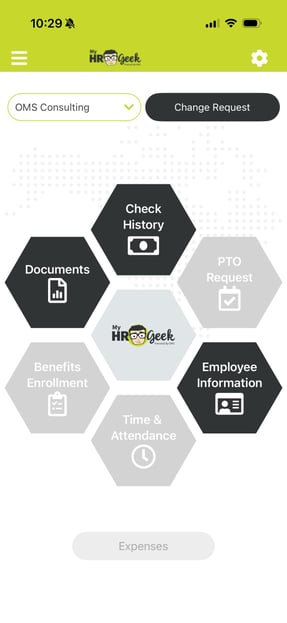
Once login is complete, the user will see the Home Page. From here, you are logged in and able to access all the modules. If the user does not have access to a module, it will be disabled and grayed out. An employee user will be able to use the same login on the app or at our website myhrgeek.com.
Users can also manage their settings, view the disclaimer, and log out using the settings (GEAR ICON) at the top right of the screen. On each subsequent page, the user will have two controls for navigation located at the top of the page. A return icon (ARROW) on the left and the home icon (HOUSE) on the right.