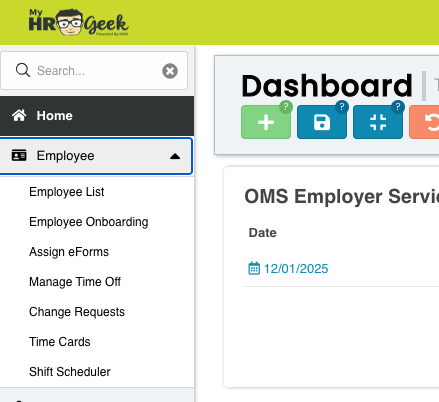
Navigate to the main menu on the left side of your screen. Click EMPLOYEE, then EMPLOYEE LIST from the dropdown menu.
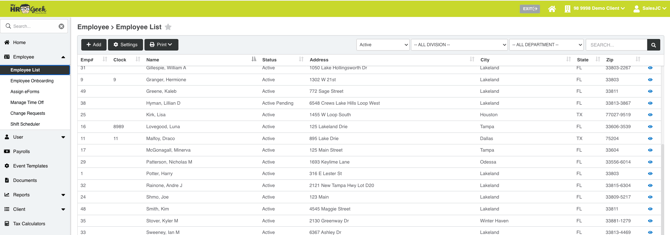
From your employee list, select an EMPLOYEE by double-clicking on their name.
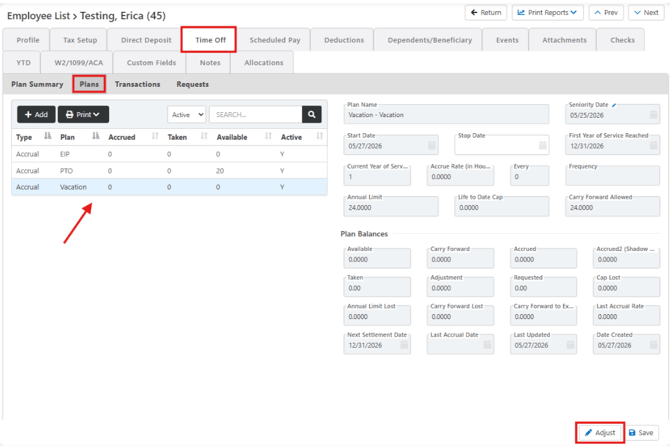
Once in the employee card, select the Time Off tab, then the Plans section tab. Select the applicable time off plan (it will be highlighted in blue when selected). Then click ADJUST in the bottom right corner of page.
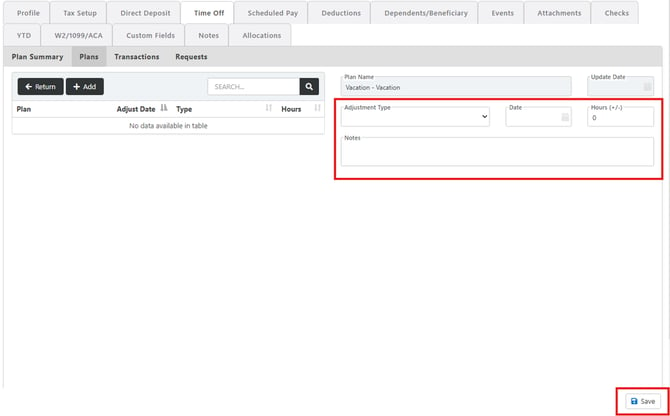
Next, enter any adjustment details in the populated fields:
- Adjustment Type
- Date
- Hours (+/-) – Adding hours or reducing hours
- Notes pertaining to the adjustment
Lastly, click SAVE in the bottom right corner.