
Overview
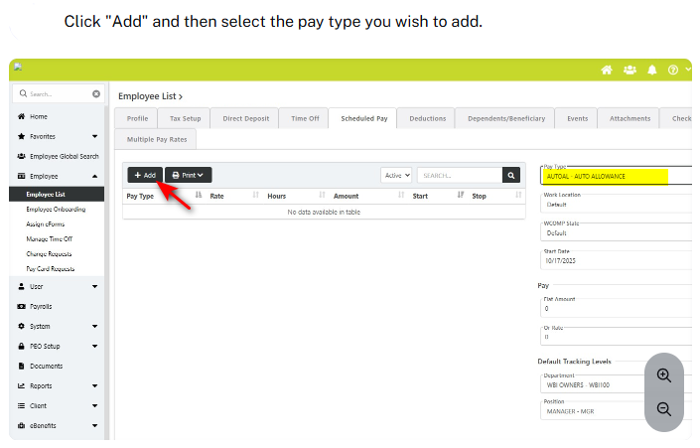
Use these instructions to add scheduled pay items to an employee’s payroll record so the item is included automatically during regular payroll processing. Scheduled pay items may include recurring earnings, allowances, stipends, reimbursements, or other pay components that should appear on future payroll runs.
Before You Begin
-
Confirm you have payroll administrator access or the appropriate permission to edit employee payroll records.
-
Verify the employee is active.
-
Confirm the pay item has already been created in the payroll system.
-
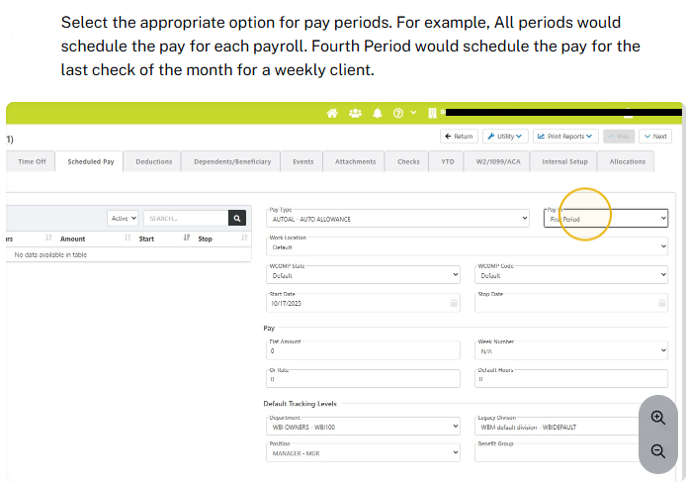
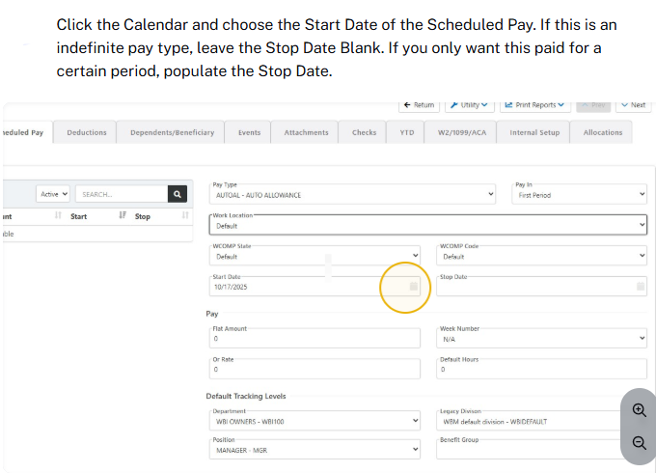
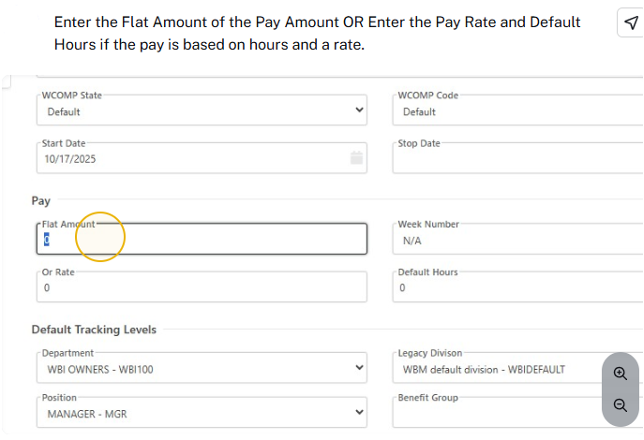
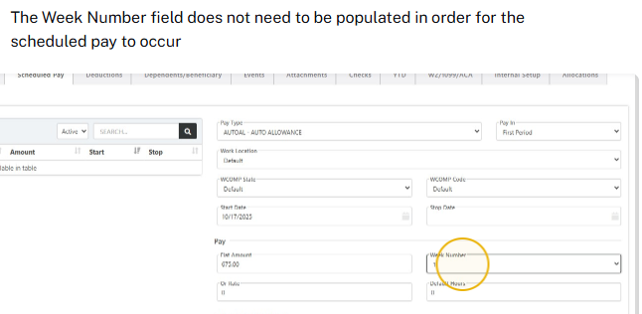
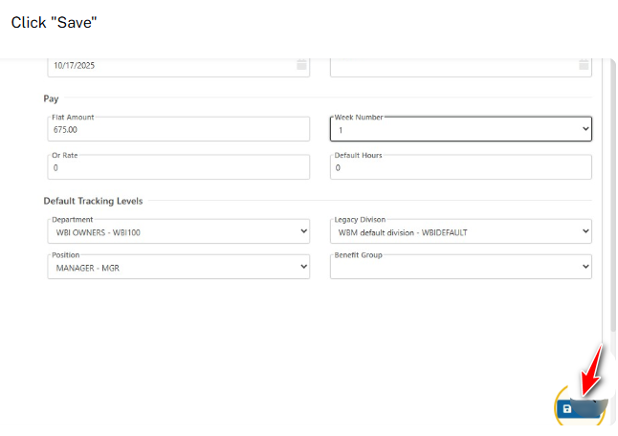
Have the effective date, amount or rate, frequency, and end date ready before making changes.
Steps to Add a Scheduled Pay Item
1. Sign in to the payroll system with your administrator credentials.
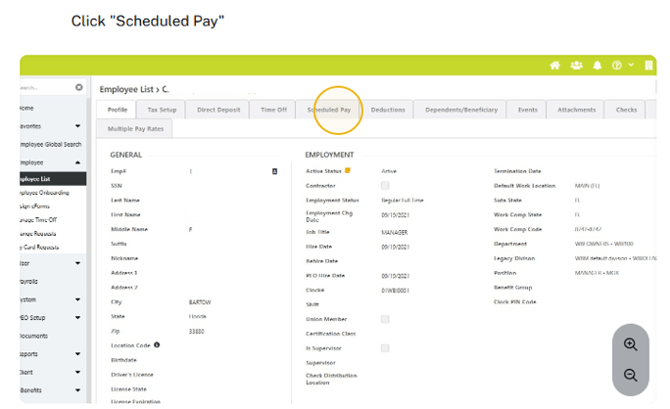
2. Navigate to the employee record.


Review and Confirm
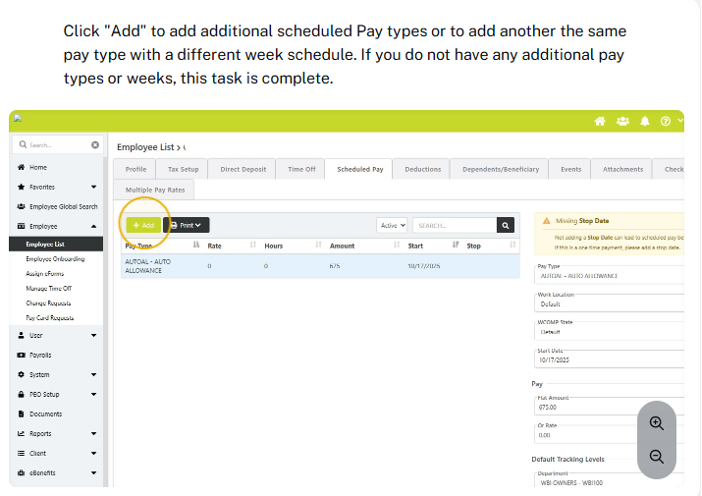
- Confirm the scheduled pay item appears on the employee’s payroll record.
- Verify the start date, amount, frequency, and end date are correct.
- Preview the next payroll or paycheck detail to confirm the item calculates as expected.
- Document the change according to your internal payroll procedures.
Troubleshooting Tips
- If the pay item is not available, confirm it has been created and activated in payroll setup.
- If the item does not appear in payroll preview, verify the effective date falls within the pay period being processed.
- If the amount is incorrect, review the rate, calculation method, and employee-specific settings.
- If you are unsure whether the item should be taxable, recurring, or one-time, consult your payroll administrator, accounting team, or tax advisor before processing payroll.